Storyboards That Follow the Script: Captions That Change When the Page Does
The board that drifts
Every storyboard starts true. The panels match the pages, the captions match the dialogue, and everyone in the room is looking at the same film.
Then the script changes. A line gets cut. A scene moves. Someone finds a better last beat. The pages are updated and the board is not, because the board lives in a different file in a different app, and updating it is a second job.
A week later there are two versions of the story. The one on the page and the one on the wall. Nobody is sure which is current, so the meeting spends its first ten minutes finding out.
The fix is not discipline. It is to stop keeping two copies of the words.
Captions are the script
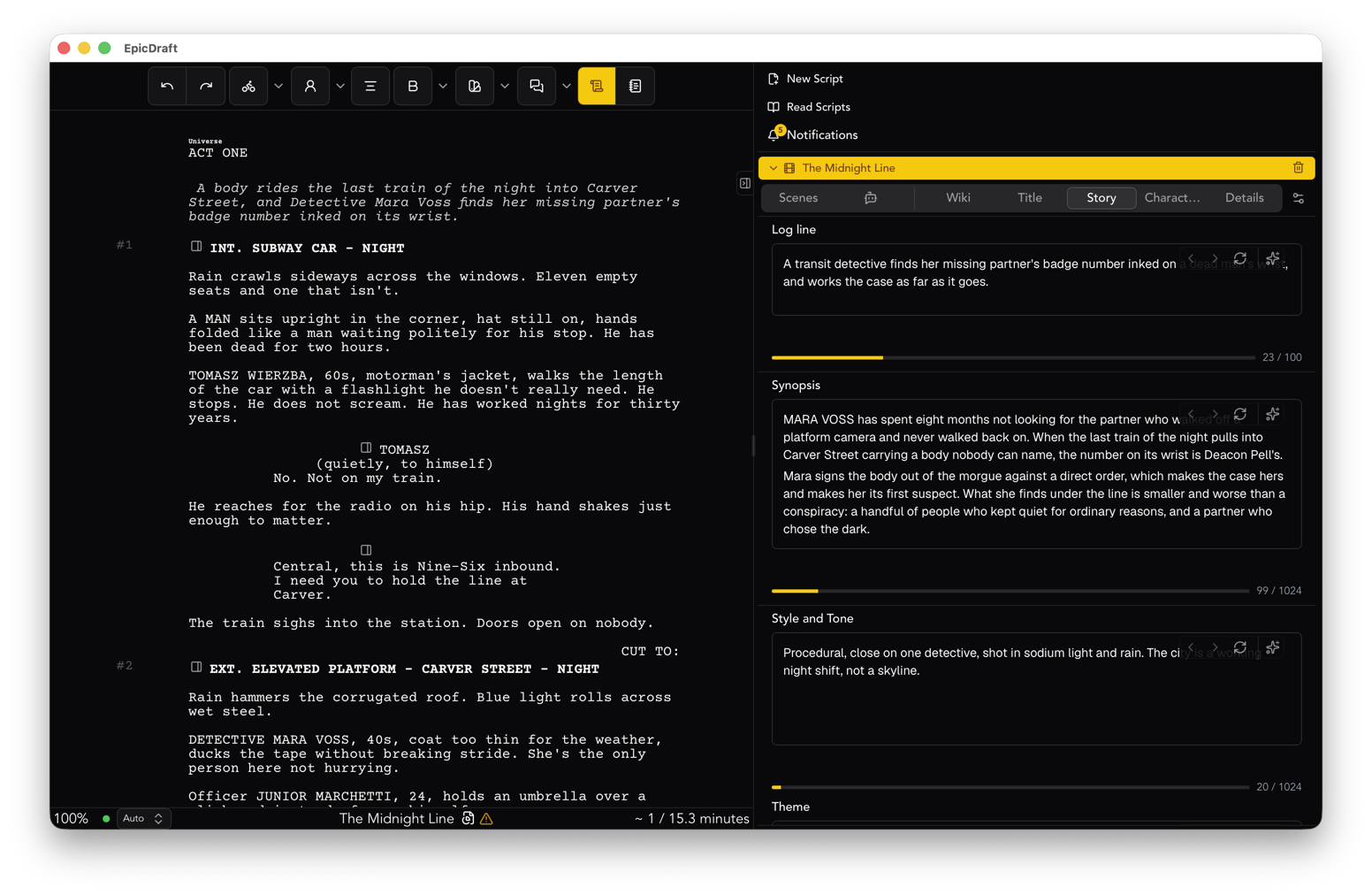
In EpicDraft the storyboard and the script sit in the same project. When you play the animatic, each frame holds for its time and the script's lines appear as captions. They are not retyped. They are read from the page.
So when you change a line of dialogue, the caption changes. When you cut the line, the caption goes. There is no step where you remember to update the board, because the board never held its own copy.
Playing the animatic happens in the Director view. It is Free, and it works on every platform without turning anything on.
Start from the page
You do not build the board in a blank room and then wire it to the script. You start from the script.
Open the menu beside a scene heading and choose New shot for this scene. It makes a shot that begins in that scene and files it with the storyboard for that scene. Or select a few lines and press Storyboard this. You get a shot over those lines, filed with the board for that scene.
Shots hold panels. A panel is a frame and a line that describes it. A storyboard is a set of shots, laid out as strips, and you can group shots into subfolders such as a chase or a dinner.
Because each shot is tied to its lines, the order of the board follows the order of the story.
Fill the frames however you like
A frame can be anything that makes the shot clear.
- Sketch it in the app, with pencil, pen, marker, shapes and layers.
- Bring in drawings or photos from your device or the Library.
- Block the scene in simple 3D, then draw the frame from that blocking.
All of that is Free. Generating frames is Pro, and it is optional. A board made entirely of stick figures and arrows plays back exactly the same way.
The 3D route is worth a note. If you place stand-ins and a camera once, you can draw several frames from the same set, and the framing stays consistent between them. The same set exports as a .glb file if you want to carry it into another tool.
How long a scene runs
An animatic is only useful if it runs at about the right speed. Each scene card in the Director view shows its length and where that length came from: estimated from the script, timed in the script, taken from recorded dialogue, taken from the 3D blocking, or locked.
That label matters. An estimate from page count is a guess, and the card says so. When you record the dialogue or block the camera moves, the number comes from something real, and the card says that instead.
You can scrub the play bar, jump to any scene, and press Space to pause. Then you watch the sequence for what it is: a first, rough version of the film, with the real words under it.
What changes when the page does
Here is the test of the whole idea. Rewrite a scene.
Cut a speech from the middle. The caption for that frame no longer shows it. Add a new exchange at the end, and the captions for that scene follow the new pages.
What you still do by hand is the picture. If the new line needs a new frame, you make one. That is the right division of labour. The words are the writer's, and the board follows them. The pictures are the boarder's, and they change when the boarder decides.
Cutting it further
Playing the animatic needs nothing but the project. Editing it as a film is a step further. The timeline, with lanes for takes, voices and sound, plus motion and transitions for each frame, is in Labs. Turn on the Sequencer in Settings, Labs to use it.
Captions leave the project as .srt or .vtt files, which is useful if the animatic goes to someone who edits elsewhere. That is Free. Rendering the finished video and sizing it for sites like YouTube or Vimeo are Pro, and in Labs.
None of that is needed to get the benefit described here. A project with a script, a few boards and nothing switched on already keeps the captions honest.
Where to start
Take one scene you are unsure about. Make a shot for it from the heading menu. Put a rough frame in each panel. Press play.
Then change a line and play it again. The first time the caption follows you, the idea is clear.
For the whole path from page to picture, see the creators page. The step-by-step is in the storyboards guide.