EpicDraft
Screenwriting and story planning software that uses a text-based file format extended from the .fountain format.
- EpicDraft can open
.sp,.fountain,.fdx, and.pdffiles, and export to.spand.pdf. - EpicDraft has a minimal design with UI elements that can be scaled and hidden from view for distraction-free writing.
- The charming typewriter sounds can be disabled in the settings menu.
Starting out
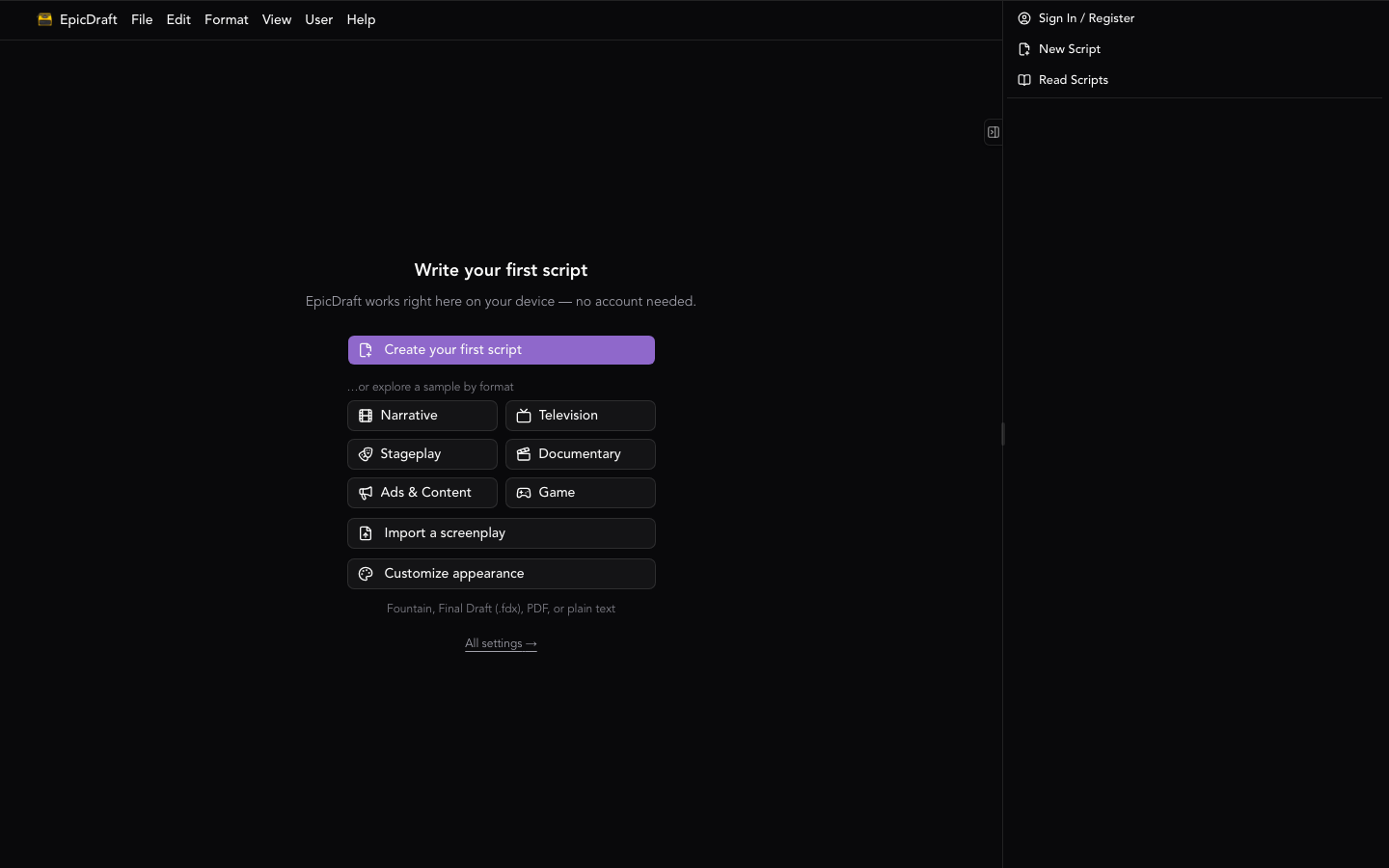
On a fresh install there is nothing to sign in to — EpicDraft runs on your
device and saves locally. Start a blank script, import an
existing one (.fountain, .fdx, .pdf, or plain text), or open a sample in
the format you're writing: Narrative, Television, Stageplay,
Documentary, Ads and Content, or Game. Each format lays the page
out its own way and checks your script against how that medium is written — you
can change a script's format at any time in Settings → Paper → This project.
Finding your way around
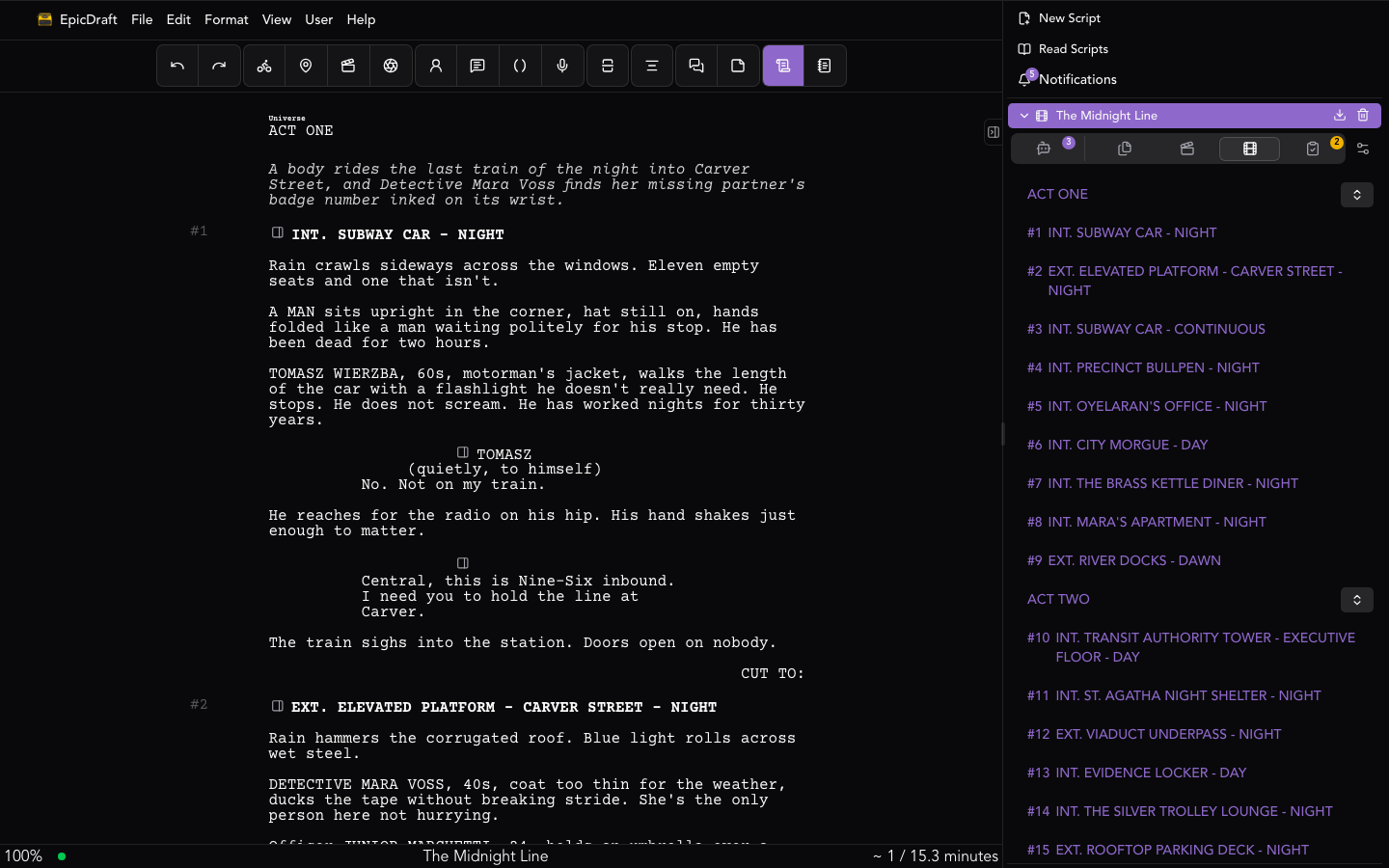
The menu bar across the top groups every command under File, Edit, Format, View, User, and Help. Hotkeys are listed alongside their corresponding function in each drop-down.
The toolbar above the editor is a fan of button groups — when the window gets narrow, whole groups collapse to keep it tidy. It carries Undo and Redo, a Document Editor / Print Editor view toggle, quick-format buttons for the screenplay elements (Action, Scene Heading, Character, Dialogue, Parenthetical, Transition, Shot, Centered, Page Break, Note, Dual Dialogue), and an AI group — ✨ AI Suggestion (Shift+Tab) and AI Command (⌘J / Ctrl+J), each appearing only when its task has a model set up. On phones it also adds a soft line break, a Tab key, and the dictation mic.
The floating toolbar that appears on the element you're editing is about the words themselves: emphasis (Bold, Italic, Underline), Colorize / Highlight, links, moving the element up and down, its spacing overrides, and deleting it. Toggle it with View ▸ Toggle Floating Tool Bar (⌘L / Ctrl+L). The same floating bar runs on Library pages and rich text fields, where inside a table it grows row and column controls. See Formatting.
Above the editor sits a browser-style strip of page tabs: a pinned Screenplay tab, one tab per open Library page, and a drop-down of recently-visited pages at the end. Tabs are remembered per project, and the strip hides in Zen mode.
Writing and planning
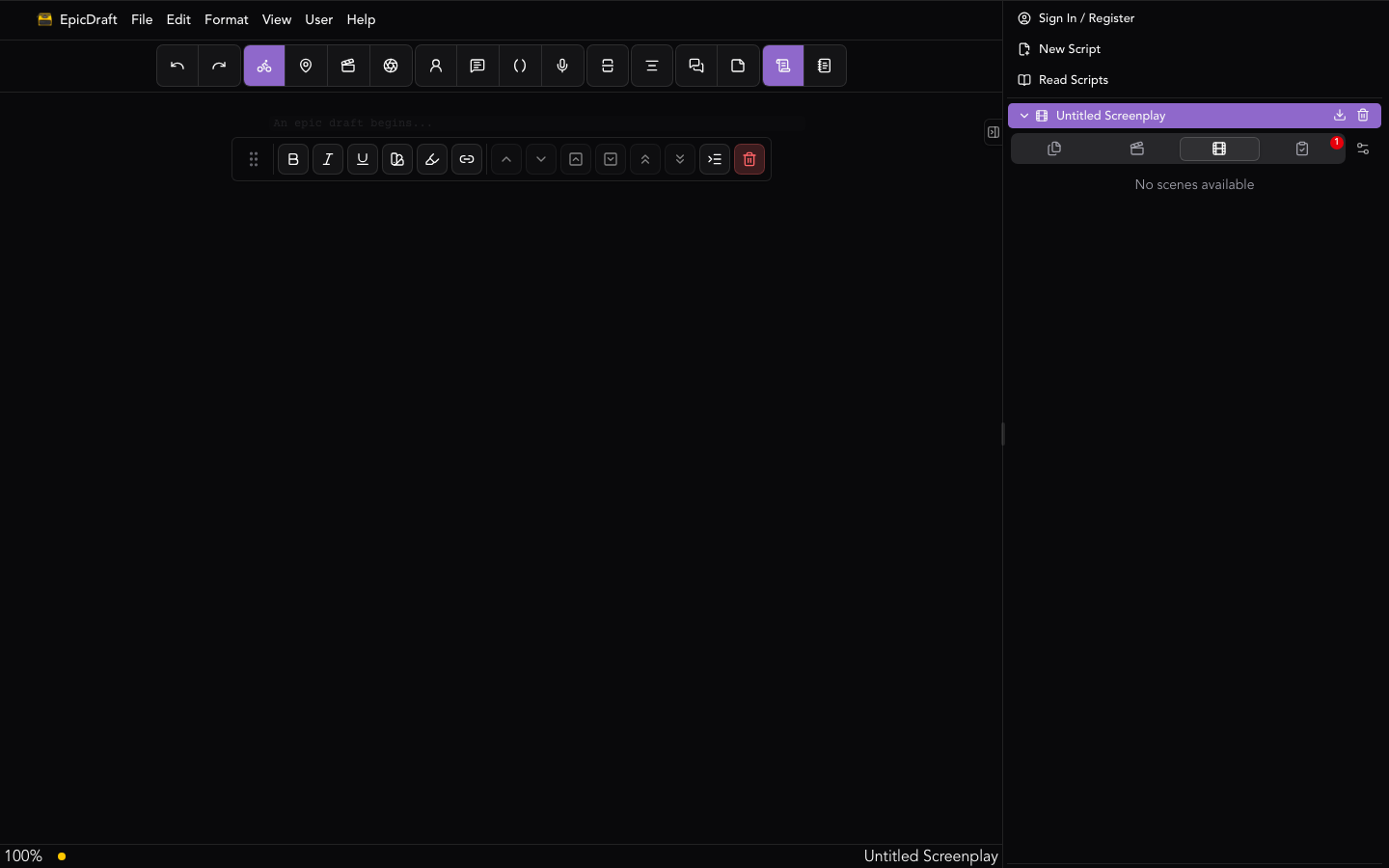
When you open a script, the file panel lives in the side navigation (on the right by default), under the open script's row. It holds everything about the script that isn't the screenplay text, organized into tabs:
- Chat — the conversation for the file: Team Chat on a shared script, Agent Chat otherwise. It appears when AI chat is set up or the file has collaborators. See Team Chat.
- Library — the project's pages: story bible, characters, locations, outlines, storyboards, notes, sub-scripts, and media. See Library.
- Title — the title page fields, plus the file's Security options.
- Scenes — every scene heading in the script, grouped by act; click one to jump to it.
- Game — game tools; only on Game-format files.
- Review — Issues, Coverage, Statistics, Submissions, and Sharing on one scrolling page; its badge counts formatting issues.
A gear button at the end of the tab row opens the file's settings. See File Panel for the full breakdown.
Your project Library
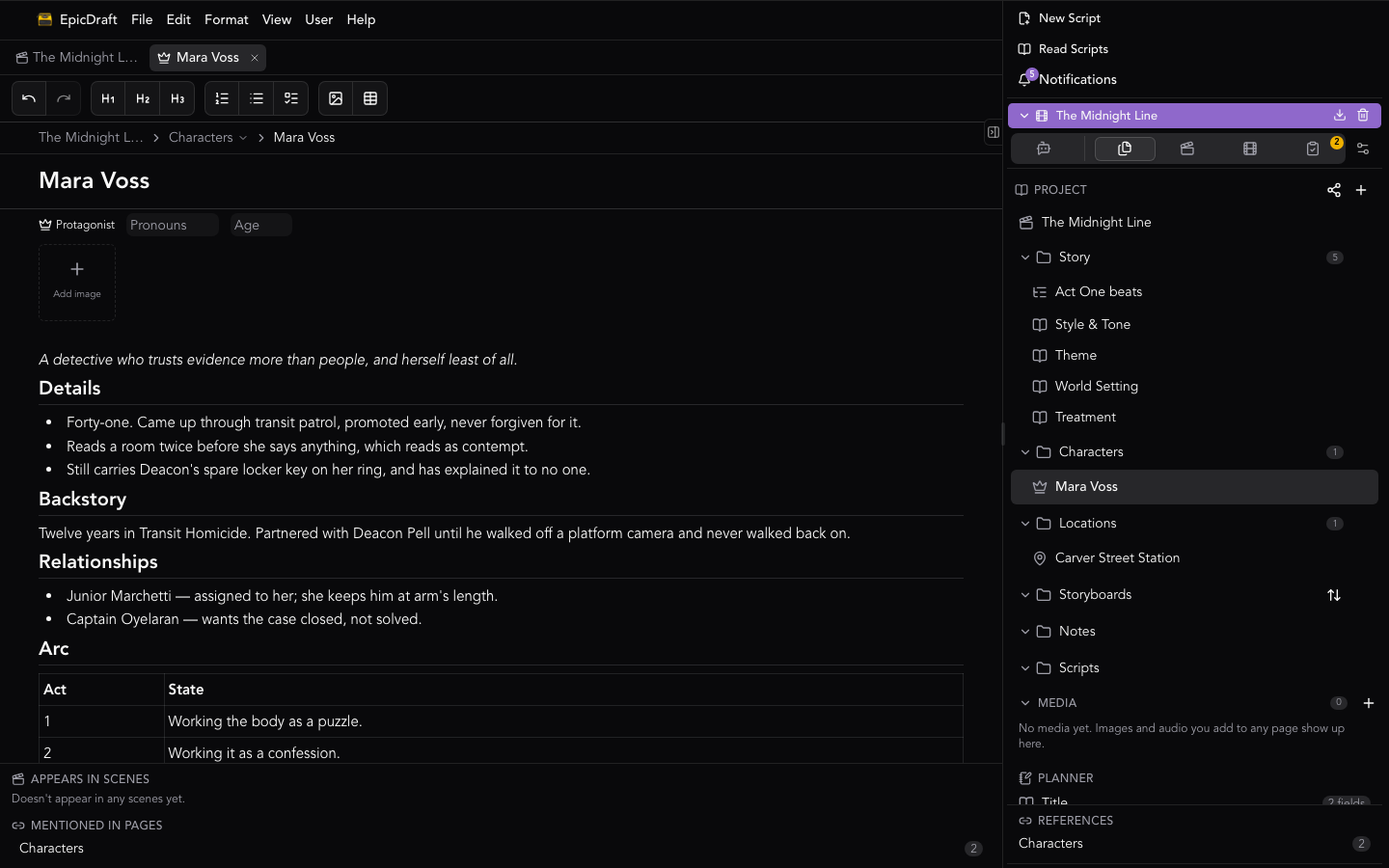
The Library tab holds long-form pages that travel with the script — a page
per character or location, an outline, storyboards, sub-scripts, story-bible
pages, folders, free-form notes, and a project-wide Media section. Pages
are rich text (headings, lists, tables, links between pages), and they live in
the .sp file itself, so they move with the script. If you used the story
planner or the Wiki tab in an earlier version, this is where those pages
went. See Library — Pro features like the project graph
and image generation are visible there but locked on the free plan.
Your files
The side navigation lists your scripts. Click a name to open it in the editor; each row has Download and Delete buttons. Delete moves a project to Recently deleted for 30 days, with an Undo — see Using Files. Scripts are saved locally on your device by default. When you sign in, they can also sync to the cloud and are split into My Files and Collaborations (scripts shared with you), with Read Only, Guest Files (Read-Only), and Pending Invites sections appearing when you have them — invites can be accepted or declined right in the list. When you have files but none is open, the main area shows Pick up where you left off, a one-tap jump back into your most recent script. See File Sync and Sharing and Collaboration.