File Panel
The file panel holds everything about your script that isn't the screenplay text itself. It lives inside the side navigation — on the right by default, movable to the left — under the open script's row, and expands or collapses with the row's chevron. It's organized into tabs; when the panel is narrow the tab labels collapse to icons.
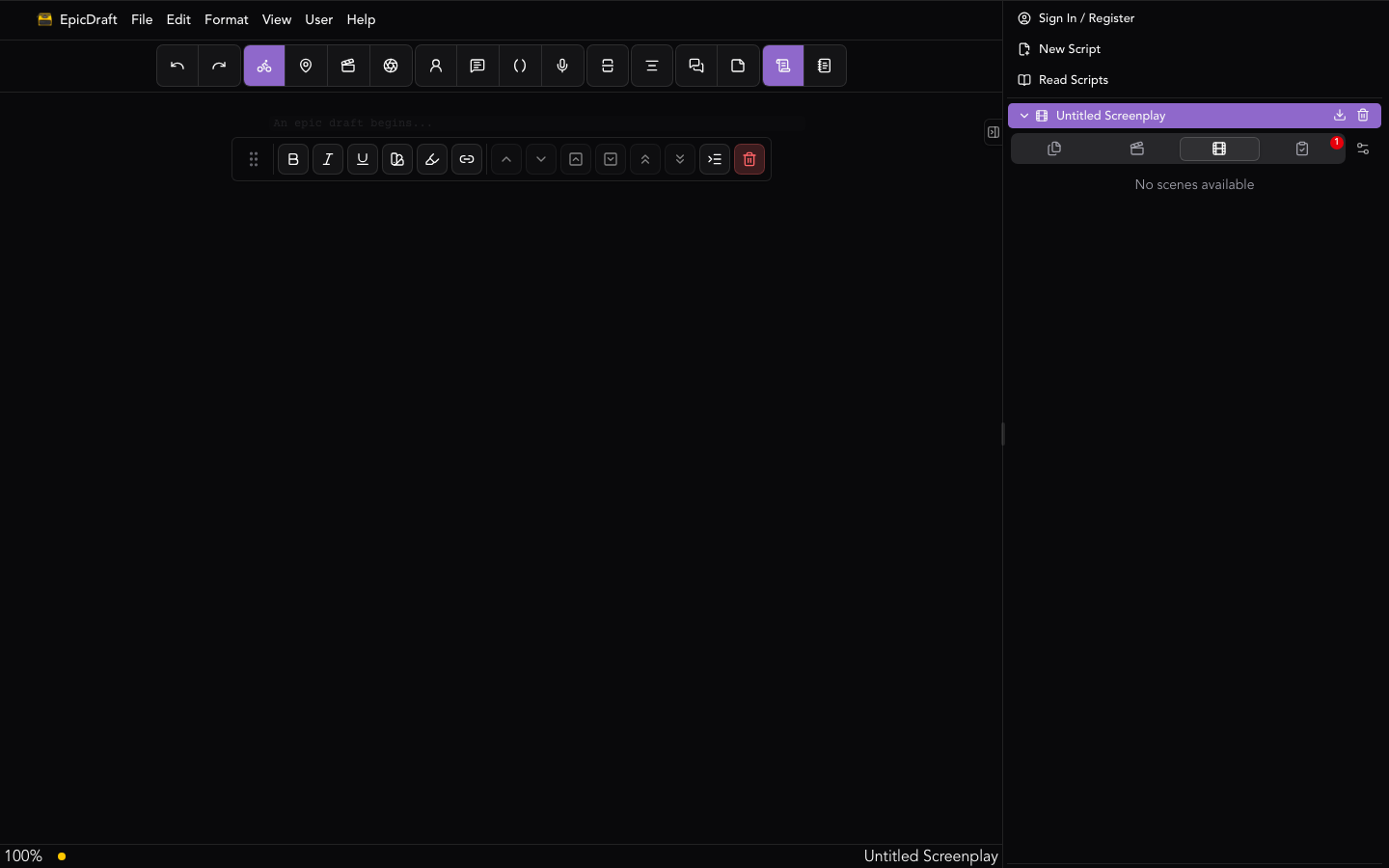
The tabs
From left to right: Chat · Library · Title · Scenes · Game (game-format files only) · Review, then a gear button that opens the file's settings on Paper → This project.
Chat
The conversation for the file — Team Chat on a shared script, Agent Chat otherwise. The tab is icon-only, appears when AI chat is set up or the file has collaborators, and shows an unread-message badge. See Team Chat and the AI Chat Agent.
Library
Your project's pages — the story bible that lives alongside the script:
characters, locations, outlines, storyboards, notes, sub-scripts, folders, and
a project-wide media section. The Story folder's pages — Style and
Tone, Theme, World Setting, and Treatment — edit the same fields
that travel with your .sp file, so what you write there is what exports
(log line and synopsis deliberately live on Title instead). Character
pages carry a role (protagonist, antagonist, supporting, or
background), pronouns, an age, and reference images. See
Library for the full tour.
Title
The title page and document details:
- Name — the file name (rename your script here).
- Title and Draft Date.
- Primary and secondary genre.
- Author(s), Story Credit, Copyright, and Contact.
- Log line — a one-sentence summary.
- Synopsis — a longer summary of the story.
This information flows into the title page when you print or export to PDF. One thing to know before you submit: readers see your log line and synopsis before they agree to read your script and write coverage.
Below the title fields, a Security section covers file encryption and per-file biometric unlock. See Security. On phones the Security options live in Settings instead.
Scenes
Every scene heading in the script, grouped by act. Click a scene to jump the editor straight to it.
Review
One scrolling page of five collapsible sections, all expanded by default:
- Issues — formatting errors and warnings; click any entry to jump the editor to the line it's about.
- Coverage — reader feedback and AI coverage reports. See Coverage.
- Statistics — charts about your script; hidden until a summary exists. See Statistics.
- Submissions — where your script has been sent. See Submissions.
- Sharing — team members and invite links. See Sharing and Collaboration.
The badge on the Review tab counts outstanding issues — red if any are errors, yellow otherwise.
Game
On Game-format files only, a Game tab carries the game tools.
On phones and tablets
On phones and tablets these live in the drawer instead. The Document group has Reports, Scenes, Library, Title, History, and Chat; the Collaboration group has Sharing and Submissions; and the File menu is just Title Page and Reports. The mobile Reports screen merges formatting issues, reader coverage, and AI coverage into one screen — tapping an issue jumps the editor to the line and pops back.