Library
The Library tab of the file panel holds your
project's pages — a page per character or location, an outline, storyboards,
sub-scripts, story-bible pages, notes, and media. Pages are rich text and live
in the .sp file itself, so they travel with the script. In earlier versions
this was called the Wiki.
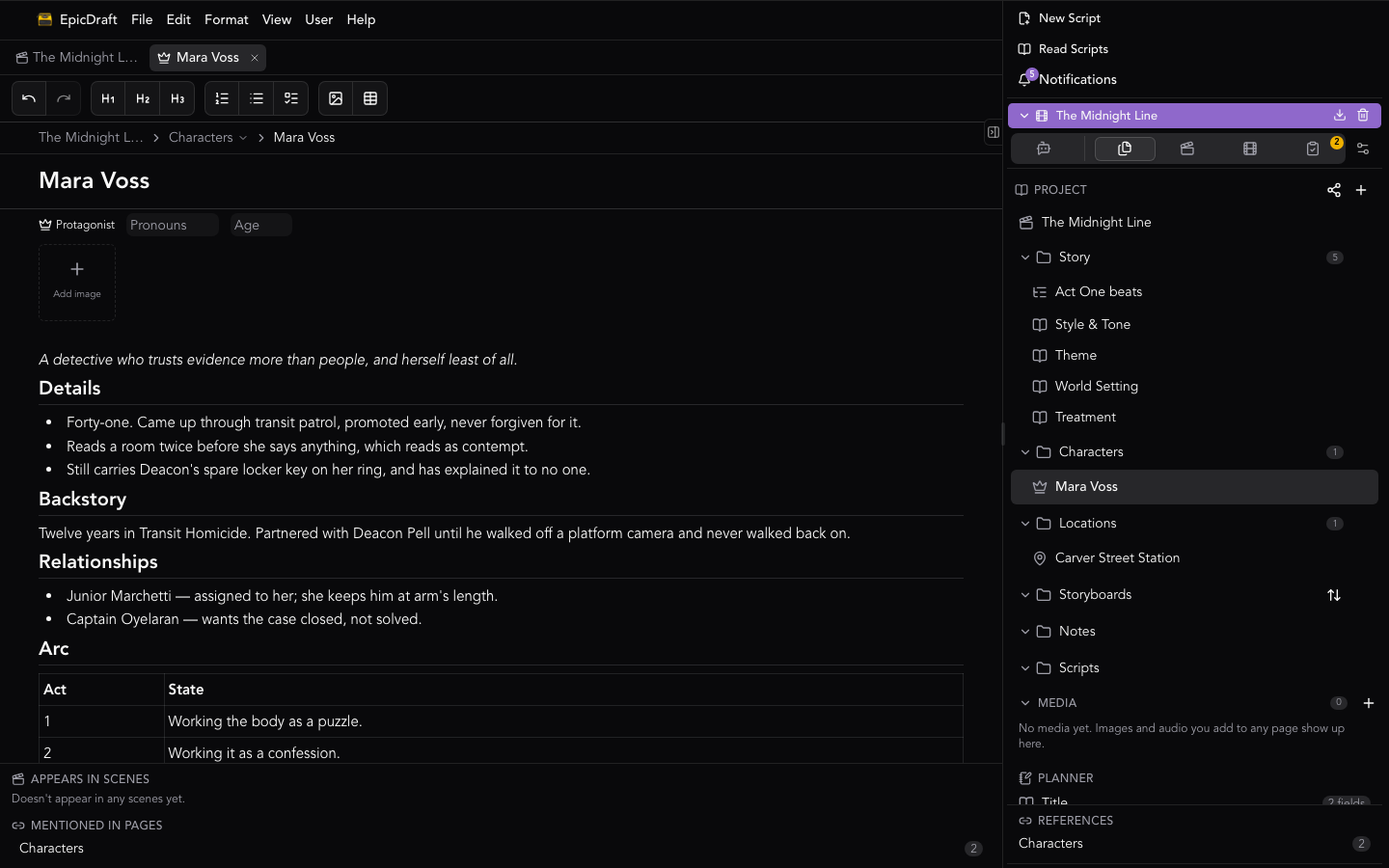
The page tree
The panel's header reads Project, with a toggle between the list and the project graph, an expand button (in graph view), and a + menu for new pages.
A pinned Screenplay row sits at the top and opens the project's first main script. Below it are the folders: Story, Characters, Locations, Storyboards, Notes, Scripts, and Documents. The Outline page lives inside Story. You can add your own folders and subfolders; a folder's page shows a live index of everything inside it.
Each row has a … menu, and what it offers depends on the row:
- Rename, Move to… and Delete are on most rows. Delete doesn't ask: it moves the page to Recently deleted, with Undo.
- Character rows add Role.
- Note rows add Type — see Notes and the breakdown.
- Script rows add Main script, Move earlier and Move later, and Paste scene when a scene is on the clipboard — see Scripts and scenes.
- Scene rows (under a script) have their own menu for moving, copying, duplicating and deleting the scene.
- Folder rows get New subfolder, Rename, and Delete folder (which asks first, and moves the pages inside up a level instead of deleting them); Storyboards and the folders inside it also offer New storyboard, New shot and New folder.
While the project has two or fewer pages, a getting-started tips card sits in the panel — it disappears on its own as the project grows.
With the keyboard, the tree works like any file tree: see Keyboard navigation.
At the bottom of the panel:
- References — for the selected page, who links to or mentions this subject. Name-only matches carry a mention tag.
- Planner — script entities without a page yet: characters and locations you've typed in the screenplay. Click one to create its page.
Creating pages
The + menu creates a Note, Character, Location, Storyboard, Script, or Manuscript, adds a Reference document…, or makes a New folder.
Pages can also come straight from the script: the affordance beside a
character cue or scene heading offers Open page — or Create page when
none exists yet. And while writing any page, type [[ to link to another page
by name, creating it on the spot if it doesn't exist.
Deleting and Recently deleted
Delete on a page or a scene doesn't ask. The item moves to Recently deleted for 30 days, and a message offers Undo. Nothing is removed for good until the 30 days are up or you choose Delete now.
- A deleted page keeps its text, its folder and its place. A deleted scene leaves its script, and keeps its text, its synopsis, its scene page, and its shots and blocking, so they all come back with it.
- Open Recently deleted from the … menu at the top of the Library panel. The menu appears once something has been deleted, and shows how many things are in it. On a phone it is in the Library's … menu too.
- Each row says where the item was, when it was deleted and how many days are left. The list is the same for everyone in the project.
- Restore puts a page back in its folder and a scene back in its script, in the same place. If that place is gone, it goes to the top of the Library.
- Delete now removes it for good. It asks first, and it can't be undone. After 30 days they are removed for good.
- A reference document's original file is kept until it is removed for good.
- On a read-only project you can't delete.
Deleting a whole project works the same way — see Files.
Writing a page
Breadcrumbs at the top of a page show where you are — Script › Folder › Page — and each crumb drops down a list of its siblings.
Type / for the block menu: Text, Heading 1–3, Bulleted list,
Numbered list, To-do, Table, Storyboard panel, Media, and
Link. Type [[ to link between pages.
The page toolbar includes an image button that opens the add-media dialog, and it obeys View ▸ Toggle Tool Bar — with the toolbar off, marks and the link button move to the floating toolbar. The floating toolbar (⌘L / Ctrl+L) works on pages just as it does in the screenplay, and inside a table it grows row and column controls. See Formatting.
On shared files you'll see your collaborators' cursors on pages, the same as in the screenplay.
To print a page, just print while it's on screen — Print/Export follows what you're looking at and renders the page (headings, lists, tables, and images, including in table cells) under the page's own name. See Printing.
Printing a storyboard (or one of its subfolders) prints the board its page shows: its synopsis, each subfolder and shot with their synopses and timing, and every panel with its frame and caption, numbered from 1 in each shot. Print or download it from the storyboard's own page to get just that subtree.
Scripts and scenes
A project can hold several scripts. The Scripts folder lists them all, and
the screenplay you opened the project with is one of them. Each script row opens
to show its scenes, in script order, each labelled with its scene number
(#3). If the script has section headers (a Settings → Labs feature) the scenes sit
under them, grouped the way the script is.
Scene pages
Every scene heading can have a scene page: a Library page for that one scene. Click a scene row to open it (the page is made the first time you open it). You can also choose Open scene page from the scene heading's menu in the script, and Open in script on the scene row jumps the other way.
A scene page shows the scene's number and heading, its synopsis (the =
line under the heading — edit it here and it changes in the script), the
characters who speak in it, the location, and the scene's shots. New
shot adds a storyboard shot for the scene. The page also carries the
scene's Blocking row (3D Blocking) and its
Breakdown. If the heading is deleted from the
script, the page stays and says the scene is no longer in the script; your
notes are kept.
A scene keeps its page and blocking when it moves, because they follow the scene's id. A storyboard is timed against one script, so when a scene moves to a different script, the shots that start in it move too. A storyboard holding only that scene's shots is re-bound to the new script; shots that shared a storyboard with other scenes move into a new storyboard named after the scene's heading.
Main scripts and the sequence bar
Any number of scripts can be marked Main script from the script row's … menu — for episodes of a series or the films of a sequel. The main scripts form a sequence, in the order you set with Move earlier and Move later; the badge on a main script's row reads "Main script 2 of 3". A project always has at least one main script, so the last one can't be unmarked.
The first main script is what the project opens to and what the pinned Screenplay row opens. The AI reads every main script in order, and File ▸ Save Project As… can export them together ("All main scripts", each starting on a new page).
When the open script is one of several main scripts, a slim sequence bar sits above the editor with previous and next buttons that name the neighbouring scripts, and a "2 of 3" count in the middle. It doesn't appear for a project with one main script.
Moving and copying scenes
Open a scene row's … menu:
- Move up and Move down step the scene past its neighbour.
- Move to script and Copy to script send the scene (or a copy) to the end of another script.
- Duplicate puts a copy right after the scene.
- Cut and Copy put the scene on the scene clipboard. Then Paste before on another scene row puts it in front of that scene, and Paste scene on a script row puts it at the end of that script.
- Delete moves the scene to Recently deleted.
With a scene row focused, ⌘/Ctrl+C, ⌘/Ctrl+X and ⌘/Ctrl+V copy, cut and paste it. You can also drag a scene row onto another scene (it lands before or after it, depending on which half you drop on), onto a script row (the end of that script), or onto a section header row (the end of that section). Hold Option/Alt while dropping to copy instead of move.
Each move shows a toast with Undo. A scene's synopsis and breakdown tags travel with it. Copies are copies: a scene copied to another script no longer follows the original.
If a section heading is in the way of Move up or Move down, drag the scene instead.
Keyboard navigation
On the desktop Library, click a row (or Tab into the tree) and use:
| Key | Does |
|---|---|
| ↑ ↓ | Previous or next visible row |
| Home / End | First or last row |
| → | Open a closed folder or script; on an open one, step into its first child |
| ← | Close an open one; otherwise step out to the parent |
| Enter / Space | Open the row's page |
| F2 | Rename |
| Shift+F10 or the menu key | Open the row's … menu |
| a letter | Jump to the next row whose name starts with it |
The phone Library has bigger touch rows and bottom sheets instead; it does not use tree keys.
Character pages
A character page's header carries a role picker (protagonist, antagonist, supporting, or background), pronouns, and an age — freeform, so "34", "30s", or "Ageless" all work. New character pages start from a seeded template.
On protagonist and antagonist pages, a sheet of six key-character questions sits below the page body: identity, want and need, obstacle, cost, stakes, and meaning. Each question has its own AI button, and your answers survive if you later demote the character's role.
A References panel on the page lists the character's per-scene appearances plus every page that links to or mentions them — click any entry to navigate there.
Locations and story-bible pages
Location pages get the same References panel — per-scene appearances and links or mentions, click to jump.
The Story folder's pages — Style and Tone, Theme, World
Setting, and Treatment — edit the same fields that travel with your
.sp file, so what you write here is what exports.
Character, location, and story-bible pages all carry a Lookbook: a strip of reference images added from your device, by URL, or generated.
Location 3D sets
A location page has a 3D set row. Build a 3D set opens the 3D editor on the location itself, where you lay out the floor, walls, set pieces and props once; Open 3D set returns to it. If a scene's blocking already has a set you like, Take the set from a scene copies that scene's set pieces and props up to the location.
In a scene set at that location, the scene page's blocking row then offers a Use the set from… button (it ends with the location's name). It puts copies of the location's set pieces and props into the scene's 3D blocking, behind whatever the scene already has. The scene stays self-contained — its characters, cameras and own props are never touched, and its exports see an ordinary scene. If you change the location's set later, an Update the set from… button appears on the scene; it replaces only the copied pieces. If you had moved or edited those pieces in the scene, it asks Replace your changes to the set? first. See 3D Blocking.
Notes and the breakdown
A note can carry a type, so it stands for something a production needs. Choose Type on a note row's … menu, or pick one when you create the note from a scene's breakdown. The types are: Production note, Cast, Extras – atmosphere, Extras – silent bits, Stunts, Props, Wardrobe, Makeup & hair, Sets, Set dressing, Vehicles, Animals, Special effects, Visual effects, Special equipment, Sound effects and Music. Plain note takes the type off again. A typed note gets its own icon and, for most types, a colour.
On a scene page, Breakdown lists everything the scene involves, sorted into those departments:
- every character who speaks in the scene (Cast) and the location from the heading come without any tagging;
- a typed note is part of the scene when the scene's text tags it — a note you
attached in the script, or a
[[link]]to it. Add to breakdown does the tagging from the page: search for a note, or type a new name, choose its type and Create and add. The × on a chip removes a tag.
Because the tags live in the script, a scene's breakdown travels with it when the scene is moved or copied.
The Breakdown report (the clipboard button in the Library panel's header, and a button on every scene's Breakdown row) makes breakdown sheets: one page per scene, with its number and heading, then what it needs, department by department. A department with nothing for the scene is left out. Choose the whole script, chosen scenes or a storyboard's shots (a shot uses the breakdown of the scene it starts in), and which departments to include, such as only Props and Vehicles. Export saves the sheets as a PDF on your project's paper size, or as a CSV. Print… opens a preview with Download and Print. The report is read when you open it, so reopen it to see later changes.
With the Writer and Director views on (Settings → Labs), the same sheets are under Export… → Breakdown sheets, with the same choices and a look at the first sheet. The hint "Report: Export… → Breakdown sheets" on a scene's Breakdown row opens Export… with that scene chosen.
Outlines
A blank Outline page opens with a template gallery: three-act (basic), three-act hero's journey, four-act (basic and advanced), five-act Freytag, Kubrickian non-submersible units, or blank. You can pick Choose a different template afterwards to start over.
Storyboards
The Library lays storyboards out as a hierarchy:
Storyboards / [folder /]* storyboard / [subfolder /]* shot
- A storyboard is a folder whose page shows every shot laid out, each as a strip of its panels. Make one with New storyboard on the Storyboards folder (or on a plain folder).
- Folders above a storyboard (made with New folder on Storyboards) only organize storyboards — act 1, act 2, drafts. They can nest freely, but a storyboard can't go inside another storyboard; the Library won't offer it as a Move to… target.
- Subfolders inside a storyboard organize its shots (a chase, a scene). The storyboard's page shows them as indented headings with their shots underneath, in the same order as the Library.
- A shot holds the panels. Shots only move within storyboards.
A project with several scripts lets each storyboard be timed against one of them: pick it with Script at the top of the storyboard's page. Its shots, ranges and auto-names then follow that script, and Open in script jumps to it. Scene ids only mean something inside their own script, so two storyboards on different scripts never collide even when a duplicated script repeats ids.
Links and generating
A storyboard's Links section shows how each shot ties to the script and the outline, and why. A shot is linked by its script range, or by a synopsis that reads exactly like a scene's (case, punctuation and spacing aside). A synopsis link can be pinned to its scene, which turns it into an explicit range. A shot whose scene was deleted shows Scene missing, and scenes that share a synopsis show Several scenes match — you choose; nothing is guessed. An outline beat links to a shot when its text is the same as the scene's synopsis.
Under Generate, each action shows a preview with a checkbox per step and writes nothing until you Apply:
- Shots from script adds a shot for every scene the storyboard doesn't cover, carrying the scene's synopsis.
- Shots from outline adds a shot for each outline beat nothing else says yet.
- Fill shot synopses gives linked shots with no synopsis their scene's.
- Outline from script adds scene synopses the outline lacks as outline beats.
- Synopses to script writes a shot's synopsis into the scene its range starts in, as the scene's
=line — only when that scene has no synopsis yet. It never replaces one you wrote, and it works whether or not that script is open. - Scenes from outline adds a new scene to the script for each outline beat that no scene says yet: a placeholder heading (
INT. NEW SCENE - DAY, for you to rename) with the beat as its synopsis. Each goes right after the scene of the previous outline beat — found by an exact synopsis match, so your existing scenes are never reordered — or at the end of the script when no earlier beat has a scene. It adds scenes and never changes the ones you have.
Each is safe to run again: once a step is applied, it no longer appears.
In the script, Storyboard this on the selection toolbar makes a shot over the selected lines (or the line your cursor is in) and files it with the storyboard for that scene.
Every level has a name and a one-line synopsis you edit in place on the storyboard's page (and on the shot's own page); panels can be named in their header too. The synopsis is yours, not taken from the page body.
A new storyboard page seeds with two panel cards and an Add frame hint.
The fastest way to start one is from the script: the affordance beside any scene heading offers New storyboard for this scene, which creates a board already covering that scene — and, once boards exist, Open storyboard for each of them.
At the top of a storyboard, the Script strip shows which stretch of the screenplay the board covers. Pick a scene, then click the first line of the range and the last; the lines in between highlight. The range ends at the start of the next scene unless you click an end line, and Continue into the next scene… lets a range run across scenes. Open in script jumps the screenplay to the start of the range. Setting the start names the page (Scene 3 – Storyboard 1) unless you've renamed it, and re-ranks the other timed storyboards.
Each panel can be tied to one line of that range: Link to script on the card opens a searchable list of the range's lines (or the whole screenplay while the board has no range). A linked panel shows the line beneath its number — click it to jump the script there — and its time chip starts where that line does, with unlinked panels sharing the gaps evenly. Panels a collaborator or the AI links show the same way.
In the page tree, the Storyboards folder can sort by Order, Start time, or Duration, resolved against the script's timeline — unanchored storyboards sort to the end by name.
3D frames for a panel
There are two ways to put a 3D picture in a panel:
- From the panel. The panel's Frame from 3D button draws a frame from the scene's 3D blocking: choose the camera (or Overhead) and the time, then Render frame. The frame is marked 3D, and Out of date · Update when the blocking has changed since.
- From the 3D editor. Its Export menu has Add camera frame (the chosen camera, at the playhead) and Add overhead frame (a top-down view of the whole set), which file a new panel in the scene's storyboard.
Both are covered, with the contact sheet and the overhead view, in 3D Blocking.
Documents
The Documents folder holds the writing your project is built from and alongside: reference documents you bring in, and manuscripts you write.
Reference documents
A reference document is source material — an earlier draft, the book you're adapting, a treatment, research. Choose Reference document… in the + menu, then either:
- From this device — a PDF, Word (
.docx), text, Markdown, or HTML file; - Google Docs link — paste the share link of a Google Doc, a Google Slides deck, or a PDF or Word file in Google Drive.
The text is read out of the file into a page in Documents, named after the file. That text travels with the project, so it's there on your other devices and for collaborators. The original file stays on your devices, the same way media does — EpicDraft doesn't host it.
The top of a reference page shows the file it came from, with its page and word count, and:
- Save the original — save a copy of the file you added;
- Open the link — for a Google document, open it in Google;
- Copy into a manuscript — start a manuscript from this text (see below). The reference stays as it was.
A few things to know:
- Google documents must be shared as "Anyone with the link". EpicDraft reads a copy when you add it; later edits in Google don't come across. Add the link again to bring in a newer version.
- Scanned PDFs are pictures of pages with no text to read, so they can't be added as references. To read a scanned screenplay, import it as a script instead — the importer reads pages with text recognition. See Using PDF Files.
- Files up to 100 MB can be added.
How the AI uses them
The AI knows which reference documents the project has, with a short opening excerpt of each, and reads them when a request calls for it — "write the opening scene from chapter 3 of the novel", "what does the old draft say about Mara's brother?". Long documents are read a part at a time. The AI treats references as read-only: it won't change their text, and puts its own work in a note or a manuscript instead. See AI Chat.
Manuscripts
A Manuscript is a page for prose — a novel, a novella, a short story, a long-form treatment — written in the same editor as every other page, with chapters as headings. A new one starts with Chapter One. Create one from the + menu, or with Copy into a manuscript on a reference document to rework existing text. The AI can read manuscripts like any page, and can write into them when you ask.
Media
The Media section is project-wide: it lists every image, video, and audio file added anywhere in the project, along with 3D models, animations, skies and colour looks (see 3D Blocking). Media with a preview gets a small thumbnail; the rest get a kind icon. Each row has Remove from project, with a confirmation. Once the project has a texture (an image added to a 3D surface, or generated for one), the section also shows All / Images / Textures chips, and texture tiles carry a small grid badge.
The add-media dialog has three modes: from your device (with a size cap — media stays on your device, EpicDraft doesn't host it), from a link, or Generate (Pro), which starts seeded with "Using this page" context. See AI Images.
The project graph (Pro)
The list ⇄ graph toggle in the header switches the panel to the project graph — your screenplay at the center with everything fanning out around it, node size weighted by importance. Click a node to open it; drag nodes to arrange them. Controls cover a Scenes toggle, a Mentions toggle, kind filter chips, zoom in and out, and fit to view. Solid edges are links you made; dashed edges are derived from a name match or folder membership. On desktop the graph expands to a large dialog; on phones it's its own screen.
The graph is a Pro feature — free users see it locked. See Accounts.
Duplicating a project
File ▸ Duplicate Project (⇧⌘N on a Mac) makes a copy of the open project as a new project named after the original with "copy" added, and opens it. The copy has all the pages, scripts and media references of the original, and shares nothing with it from then on. A password-protected project can't be duplicated; the app says so. On a phone or tablet it is a Duplicate Project row in the drawer's Document group.
On phones and tablets
The Library opens from the drawer with bigger touch rows, always-visible … targets, and bottom sheets in place of nested menus, plus a rename dialog and a persistent full-width New page button. The Project graph entry and the Media section are there too. For quick notes on the go, see Notes.