Sharing and Collaboration
EpicDraft lets you share a script with other people, edit together in real time, and lock files with a password. Sharing requires a signed-in account.
- Desktop — open the file panel and pick the Review tab; Sharing is one of its collapsible sections.
- Mobile — open the drawer, then Collaboration → Sharing.
File → Share Script… is something else: it shares the script file itself through your system's share sheet, rather than inviting collaborators.
Roles
Each collaborator has a role:
- Editor — can view and edit the script.
- Reader — read-only access, and can submit coverage.
- Owner — the person who created the file. The owner manages members, links, and encryption.
Collaborators don't need their own Pro subscription — an invitee gets full collaboration on the owner's file free.
Inviting collaborators
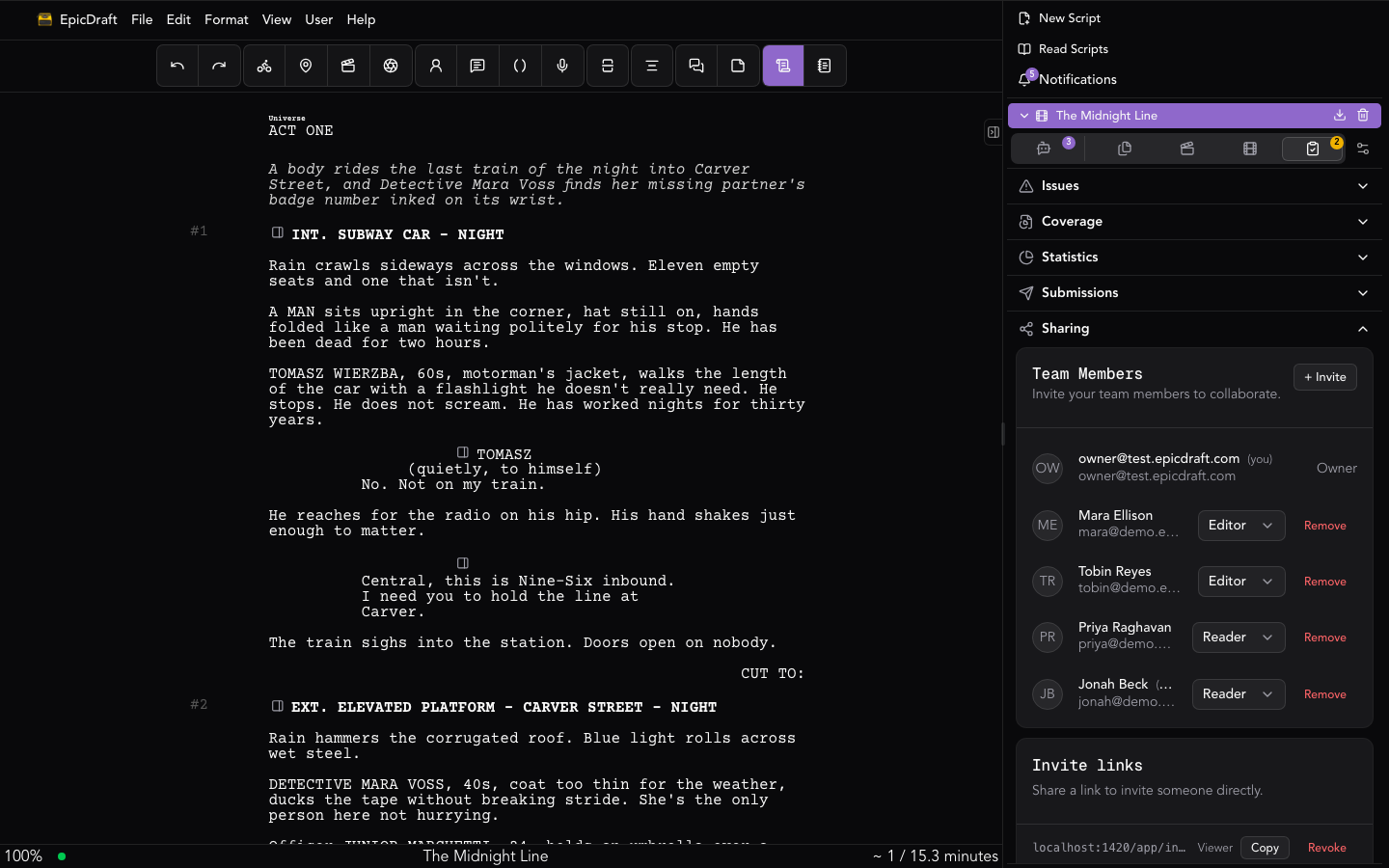
In the Sharing section you can:
- Invite by email — enter someone's email and pick Editor or Reader. They appear as pending until they accept.
- Invite links — generate an Editor link or Reader link to share directly. Editor links are single-use and expire after 7 days; Reader links are unlimited and never expire, so you can hand the same one to many readers. Copy or revoke any link at any time.
You can change a member's role or remove them from the member list. Scripts shared with you appear under Collaborations in your file list.
Creating new invites requires an active Cloud Service (included with every plan; lifetime purchases include 5 years). Accepting an invitation never requires one — collaborators are covered by the owner's plan — and if your Cloud Service lapses, existing collaborators keep their access and you can still manage or revoke them.
Content rating
Set a content rating for the script in the Sharing section (owner only). It travels with the document itself, so it goes wherever the script goes — including a .sp file you hand someone offline.
The rating is what the Script Reader shows a reader before it shows them a page:
- G, PG and PG-13 open straight into the script.
- R and NC-17 ask the reader to confirm they're 18 or older first.
- Unrated — the default — is treated the same as R. A script nobody rated is indistinguishable from one full of adult material, so the reader errs toward asking.
Rate your script if you'd rather your readers weren't stopped at the door.
Real-time collaboration
When multiple editors have the same script open, changes sync live between them. EpicDraft uses peer-to-peer (WebRTC) connections for live editing, falling back to the cloud for signaling and persistence, so edits merge without conflicts.
Who is here
Each person gets one colour, the same everywhere they appear: their cursor and selection, their avatar in the status bar, and their initial in team chat. It works on the screenplay and on Library pages, in Light, Medium and Dark. The colour follows the person's account, so it doesn't change between sessions or devices; someone without an account gets a colour for the session.
Choose the connection indicator in the status bar to see who else is connected:
- Also editing — the people with the script open to write.
- Reading — readers who have it open in the reader. They are listed apart because they aren't editing, and they don't have a cursor on the page.
If you lose the connection, the people you were working with stay on the list, dimmed, instead of vanishing, and their cursors dim too. The indicator also says whether you are Connected, Local only or Offline, and offers Try again — see File Sync.
Who is here travels only between the people who have the script open. It is never sent through the server.
File security
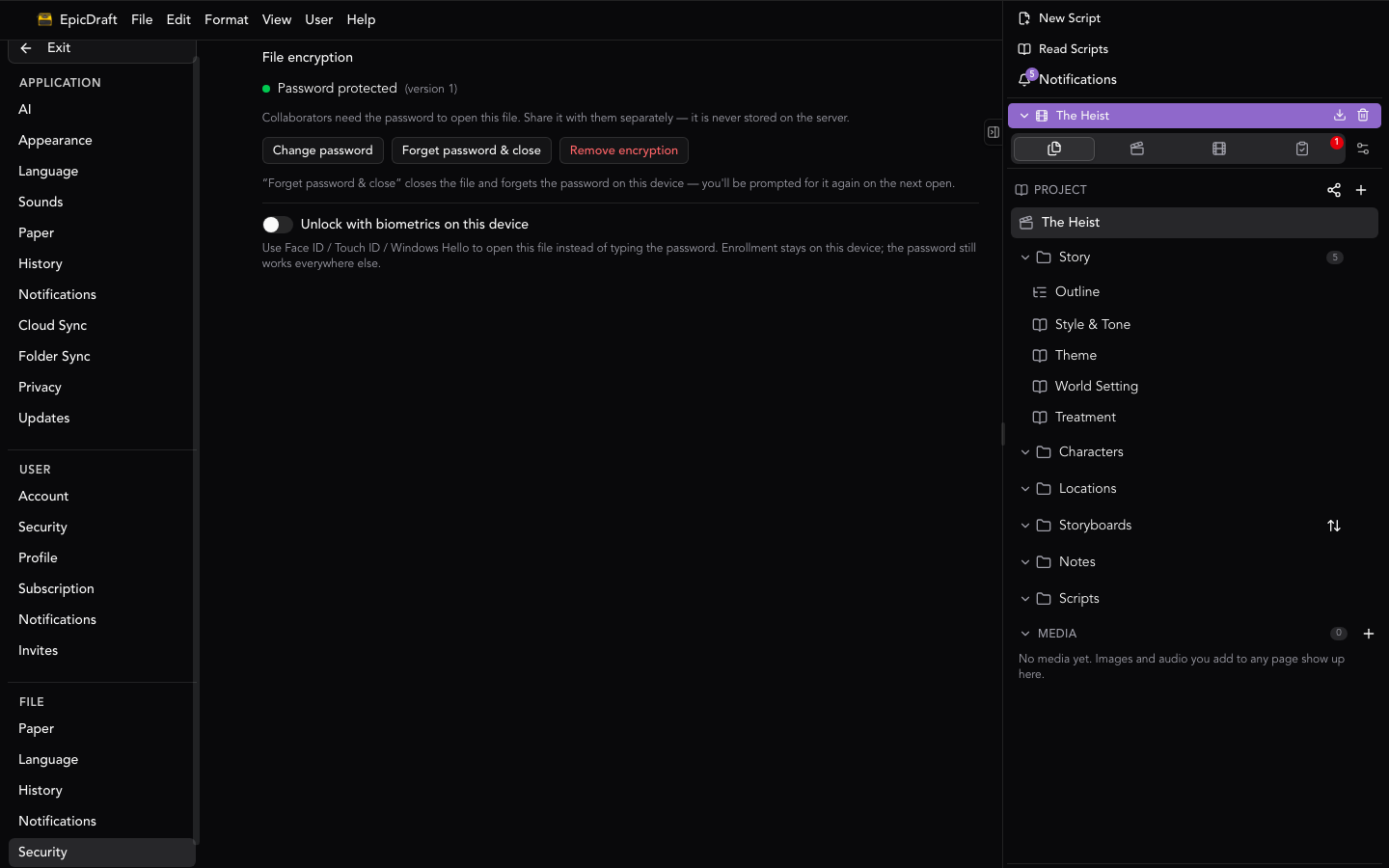
You can password-protect a script from Settings → Privacy → This project — on desktop it's also in the Title tab's Security section:
- Enable encryption — set a password. The document is encrypted on your device with AES-GCM; the server only ever stores ciphertext and never sees your password or content. Enabling encryption is a Pro feature.
- Change password or Remove encryption (owner only).
- Forget password & close — clears the cached password on this device and closes the file; you'll be prompted for the password next time you open it.
Everything on an already-encrypted file — unlocking it, changing or removing the password, biometric unlock — works for everyone, deliberately: a lapsed subscription never locks anyone out of their own work. Biometric unlock is offered to any collaborator with the encrypted file open, not just the owner — see Security.
Collaborators need the password to open an encrypted file — share it with them separately, since it is never stored on the server. Encrypted scripts show a Password protected indicator in the Sharing section.
Transferring or ending collaboration
In the Sharing section's Danger zone (owner only):
- Transfer ownership — make another member the owner; you become an editor. For an encrypted file, the new owner needs an active subscription.
- Turn off collaboration — remove all collaborators and revoke all invite links at once.
Guests
People who open a shared link without an account can view the script. Guest files are listed under Guest Files (Read-Only) in the file list. If you open one while signed in, EpicDraft immediately saves an editable copy of it into My Files, so you can keep writing without affecting the original.