Security & App Lock
EpicDraft has two independent layers of protection — an app lock for the whole app on one device, and file encryption for individual scripts — plus privacy controls over what the app is allowed to report.
App lock
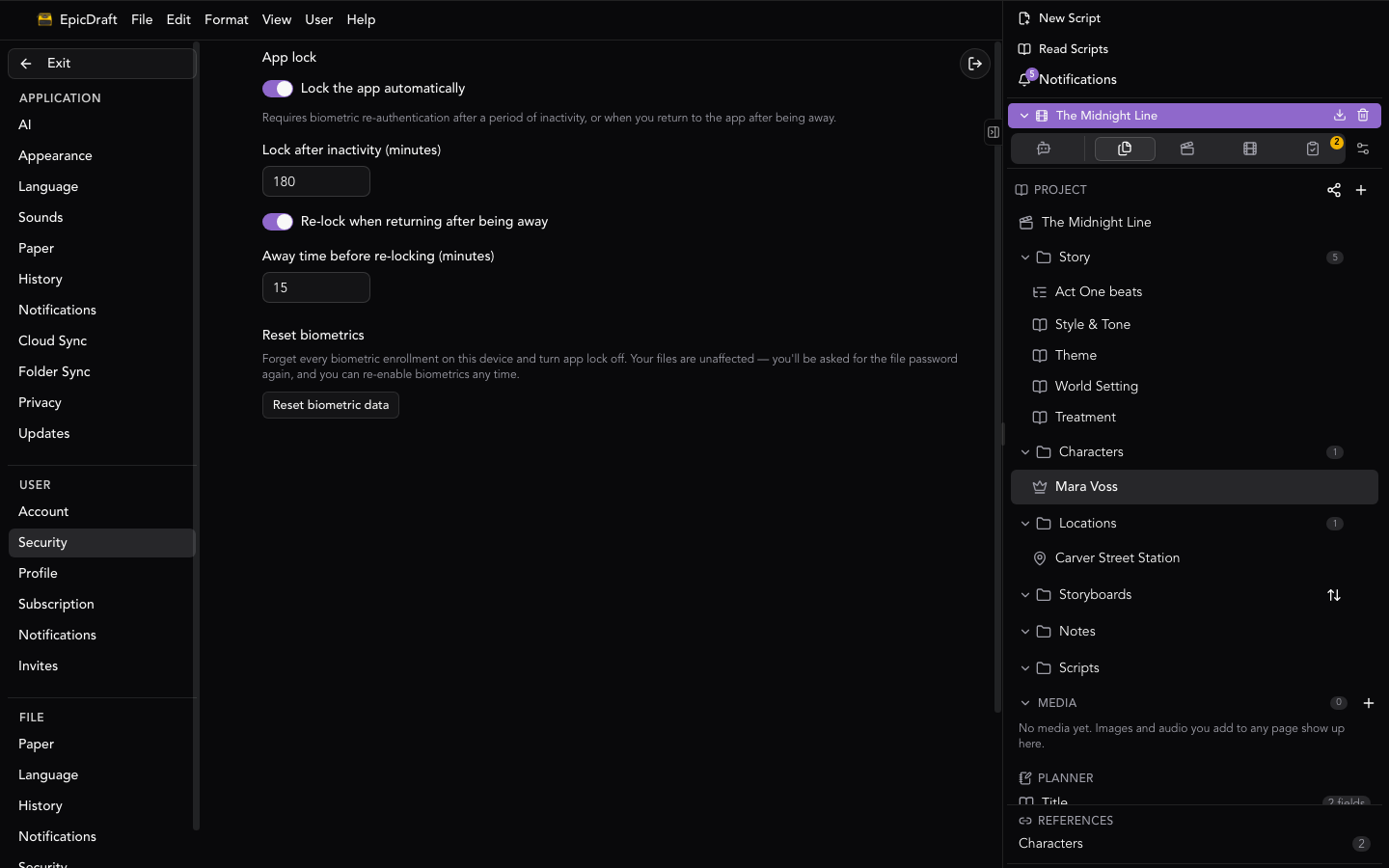
App lock is free and works per device. Turn it on at Settings → Account → Security.
- Arming it requires passing a biometric check first — the Confirm it's you prompt — so you can't lock yourself behind a sensor you can't pass.
- Once armed, the app locks after a period of inactivity, and again when you return after it's been in the background.
- When locked, unlock with your device's biometrics — Face ID, Touch ID, Windows Hello, or Android's biometric prompt — or sign out as an escape hatch.
- Turning the app lock off never prompts, so a broken sensor can't strand you.
- Reset biometrics clears every biometric enrollment on the device and disarms the app lock. It touches no files and no passwords.
File encryption
Each script can carry its own password. Open Settings → Privacy → This project with the script open — on desktop it's also in the Title tab's Security section.
- Enabling encryption is a Pro feature. The document is encrypted on your device; encrypted files never store plaintext on disk, locally or in the cloud.
- Everything after that works without a plan — unlocking the file, changing the password, removing it, and biometric unlock all work for everyone, deliberately. A lapsed subscription never locks anyone out of their own work.
- Biometric unlock is offered per file and per device: once you've opened an encrypted file with its password, you can unlock it with biometrics from then on. The password still works everywhere and remains the way to open the file on other devices, so keep it somewhere safe.
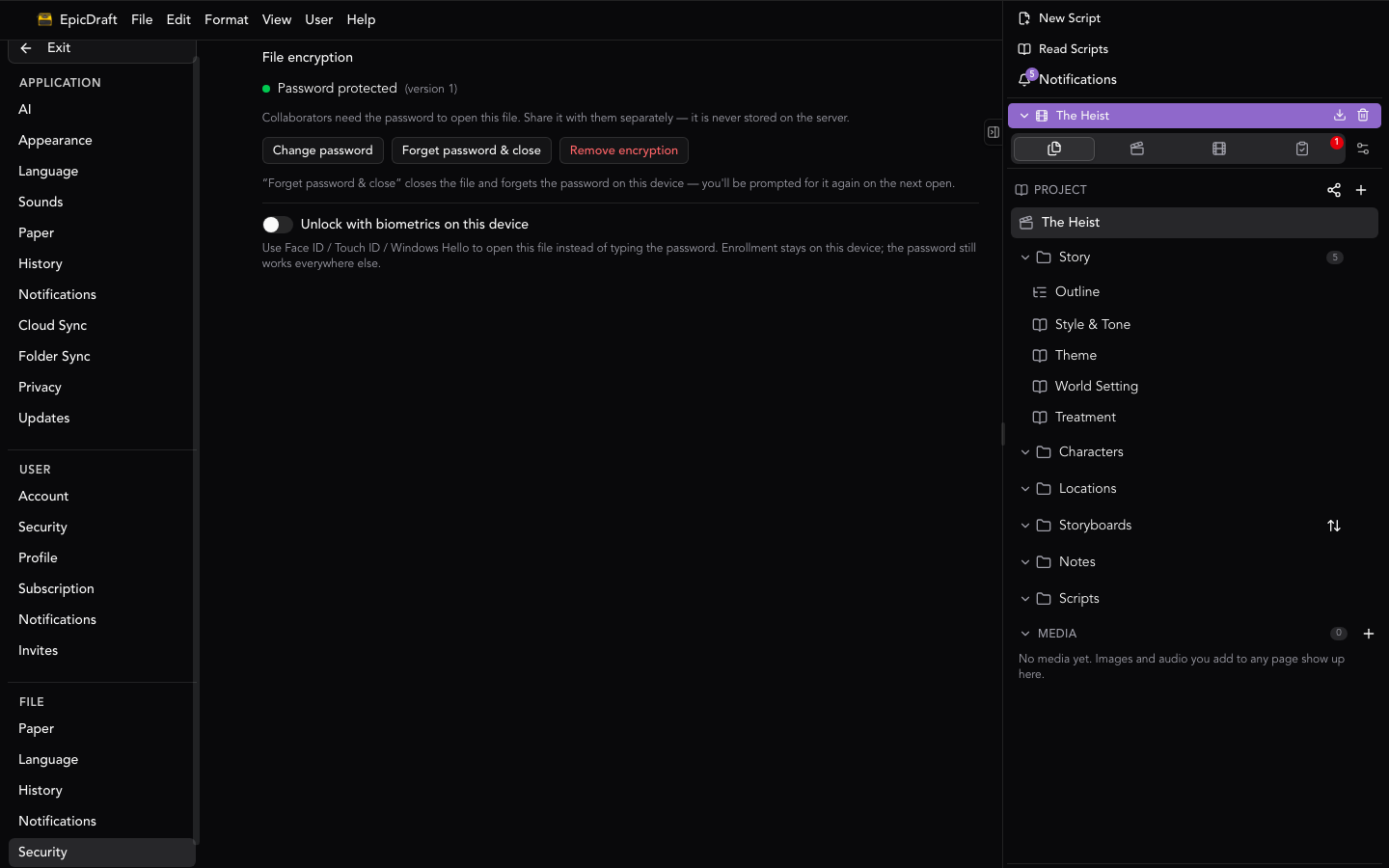
Collaborators need the password to open an encrypted file — share it with them separately. See Sharing and Collaboration for how encryption interacts with a shared script.
Privacy
Settings → Privacy has two independent switches:
- Crash and error reports — on by default, so crashes can be fixed.
- Usage statistics — off by default.
Whatever the switches say, some things are never collected: your writing, file and character names, the contents of error messages, and your identity or location. Reports are tied only to an anonymous install id, which you can reveal on the same page.
If collection is ever switched on remotely, a one-time notice appears in the app, linking to these settings so you can turn it back off.
Related
- Sharing and Collaboration — encryption on shared scripts.
- Using Settings.