Team Chat
When a script has collaborators, EpicDraft gives it a Team Chat — a real-time conversation attached to that file, so you can discuss the work right next to it instead of in a separate app. Chat needs a signed-in account and a shared script.
Opening chat
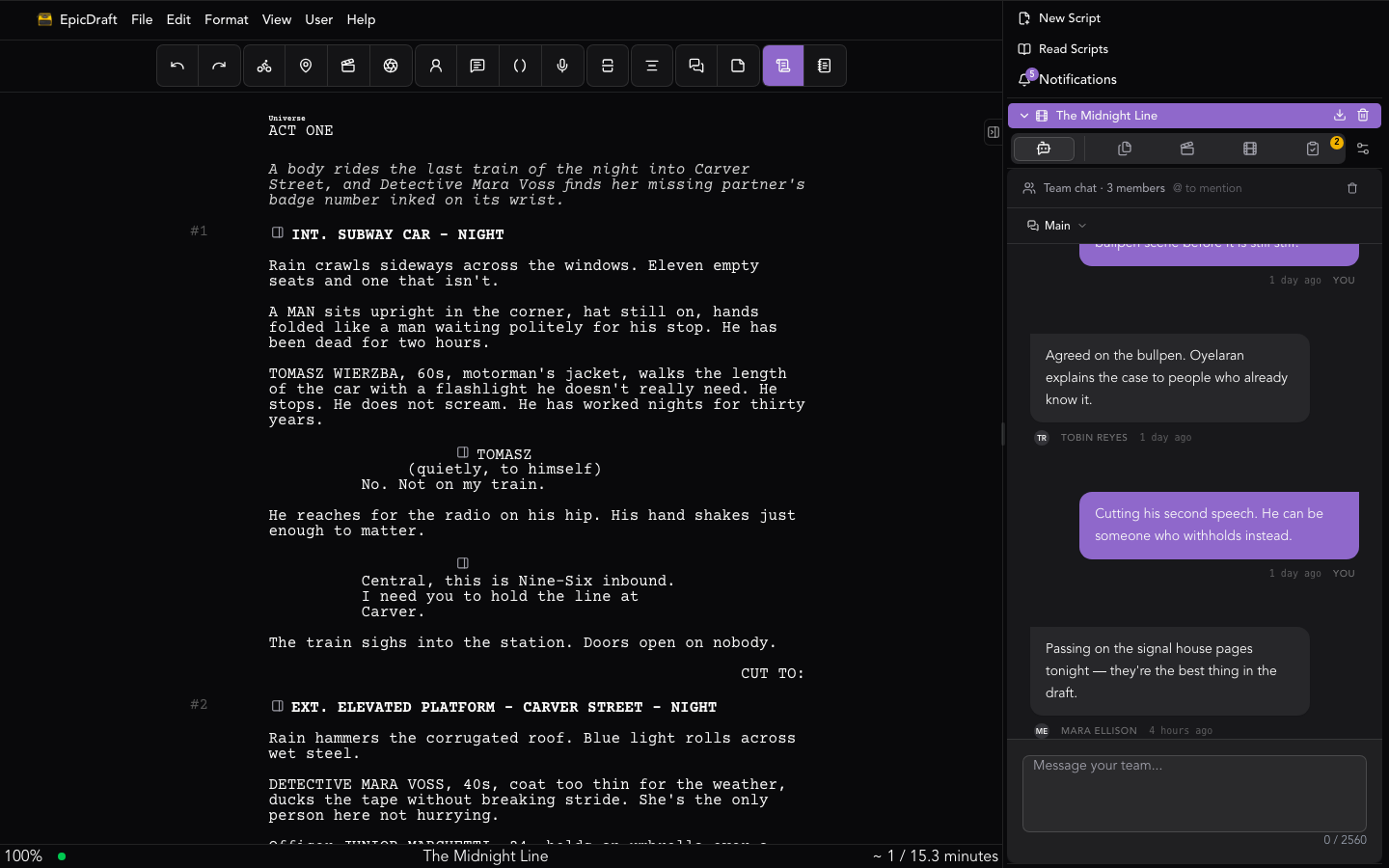
Open the chat tab at the top of the file area — it's icon-only, a bot with a speech bubble. On a shared script it's Team Chat; on a script that's just yours, the same panel is the AI Agent Chat instead (Chat Agent). When neither applies, the tab is hidden.
The conversation is per file and visible to everyone on that script — the owner and all accepted collaborators. Messages appear live for everyone with the file open, using the same real-time connection as collaborative editing.
Conversations
A file can hold several conversations, switched from the session bar at the top of the panel:
- New conversation — start a fresh thread for a new topic.
- Rename and Delete a conversation.
- Message directly — start a direct conversation with one person. A direct message is hidden from the conversation list, not from the file — and mentions inside it only offer that audience.
The unread badge on the chat tab counts unseen messages across all of the file's conversations; it clears as you read them.
Writing messages
The composer is rich text, and it has a searchable command picker for running AI skills right from chat. While you're drafting, an Addressing… chip above the composer shows who the message will target.
Type @ and pick someone to mention them:
- A collaborator — start typing their handle or name and choose from the list. They get a notification.
@all— notify everyone on the script.@ai— bring in the AI assistant (when AI is enabled) — see Chat Agent.
Messages that mention you are highlighted so they're easy to spot.
Reading and managing messages
- Each message shows the author's name and a relative timestamp; the AI assistant appears as Epic Assistant.
- Edit your own messages — hover a message to reveal the pencil. Edited messages are marked (edited).
- Delete your own messages; a script's owner can delete anyone's. Deletion has a confirm step to prevent accidents.
- Delete all messages in a conversation is available too, behind a two-step confirm.
An AI usage bar in the panel shows the script's AI totals, so a team can see what its assistant has consumed.
Related
- Sharing and Collaboration — invite people and set roles.
- Notifications & Mentions.
- Chat Agent — the AI assistant on a solo script.