Using Settings
Open Settings from the EpicDraft menu, with Ctrl + ,, or from the gear icon in the file panel's tab row, which opens Paper on This project. The links down the side are grouped under Application and Account, and a founder account also sees Admin.
Application default and This project
Paper, Language, History, Notifications and Privacy each have a switch at the top: Application default and This project.
- Application default is what every project starts from. It is saved on your device.
- This project changes only the project you have open. Each setting shows Using default: … until you change it, and you can go back to the default at any time.
This project is greyed out until a project is open.
Application
- AI — Turn AI on and choose providers and models. It has two tabs that match the app's two views: Writing (your default model, suggestions and commands, speech and dictation, scanned pages, usage) and Director (images, 3D, video and sound, voices). See Enable AI.
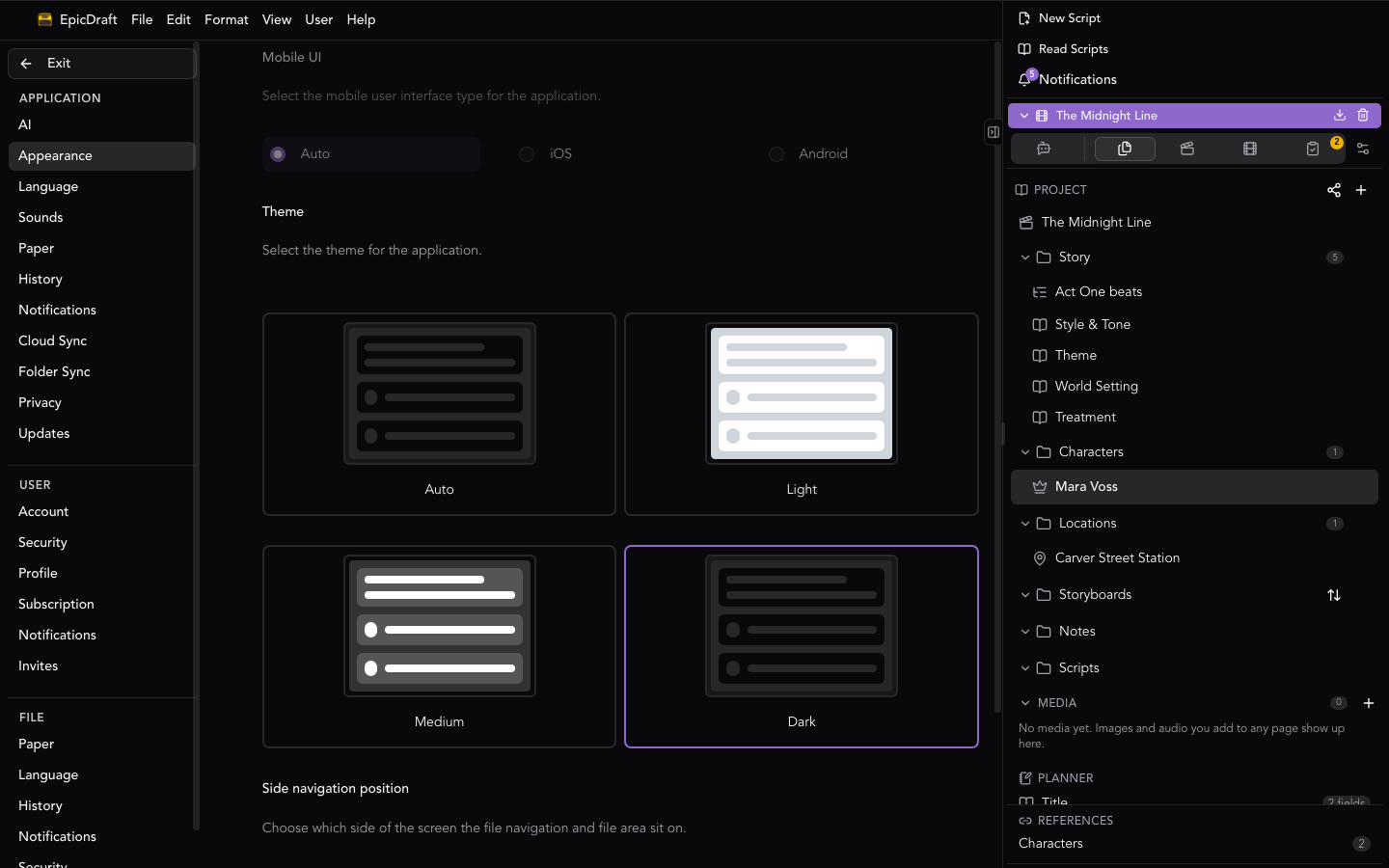
- Appearance — Choose the UI type and mobile UI, a theme (Auto, Light, Medium, or Dark), the side-navigation position (left or right — changing it reloads the app), collapsible scene sections, and an accent color; there's also a Reload App button. Zoom isn't a setting — use the View menu's ⌘+ / ⌘-.
- Language — The interface language. This project sets the script's document language, and screenplay font downloads. See Languages.
- Sounds — A single Mute application sounds switch.
- Paper — The default paper size, element spacing, and auto-space behavior for new scripts. This project sets the script's format (story mode) and columns, plus its paper size and element spacing. See Story Modes.
- History — Automatic version saving: Save versions as I write, every N changes and/or every N minutes. This project overrides the cadence for one script and shows how much disk its history uses. See File History.
- Notifications — This device has system notifications and a notification sound. Your account (when you're signed in) chooses which events notify you. This project mutes chat or everything for the open project. See Notifications & Mentions.
- Sync — Cloud Sync (cloud backup and cross-device sync, a Pro feature; if your Cloud Service has lapsed, a renew notice appears), Folder Sync (mirror your scripts to a folder on your device; needs sign-in, plus the desktop app or a browser with File System Access) and, where it's on, Dropbox. See File Sync.
- Devices — What this computer shares with your other devices, and what connects to it: This device, Home server, Pooled models, Your devices and Connections (Agent control and MCP servers). Home server and Pooled models are desktop features you switch on in Labs, and Your devices and Connections need AI, so which sections you see depends on what is switched on. See MCP and Other AI Apps.
- Privacy — Two independent switches: crash and error reports (on by default) and usage statistics (off by default). The page lists what is never collected, and you can reveal your anonymous install id. This project holds the script's password protection: end-to-end encryption (enabling it is a Pro feature) and biometric unlock. See Security & App Lock.
- Labs — Experimental features you can try. Each switch applies to this device only, and says which platforms it works on.
- Updates — The current version and its release notes.
Account
Account is one page of cards, with a row of tabs above it for the longer forms. Signed out, it shows only a Sign in card with Sign in and Create free account. The rest needs an account.
- Account — the page you land on:
- Profile — your name and email, and a link to Edit your public profile.
- Subscription — your plan, who bills it and when it renews or ends, Manage subscription, and Plans and billing (See Pro plans on the free plan). On the iOS, Android and Mac App Store builds it also has Restore Previous Purchases.
- Cloud Service — shown on a Pro Lifetime plan, with how long it runs.
- Password — change your password.
- Sign Out and Delete Account. If a project has changes the cloud hasn't received yet, Sign Out asks first and says they stay on this device.
- Profile — your public writer profile. See Profile.
- Subscription — your plan. See Accounts and Subscription.
- Security — app lock and resetting biometrics. See Security & App Lock.
- Invites — invitations to collaborate.
- Reading Exchange — where it's on.
On a phone the same page is a list: a card with your avatar, name, email and plan, then your plan, then Email, Change Password, Security, Invites, Sign Out and Delete Account.
Admin
Visible only to the app's founder account — moderation and configuration tools.
On mobile, Settings is a list: tap a page to open it, and the back button returns to the list. Sharing and Submissions for the open script are in the drawer; on desktop you reach them in the file area's Review tab. See Sharing & Collaboration and Submissions.