Models & Connections
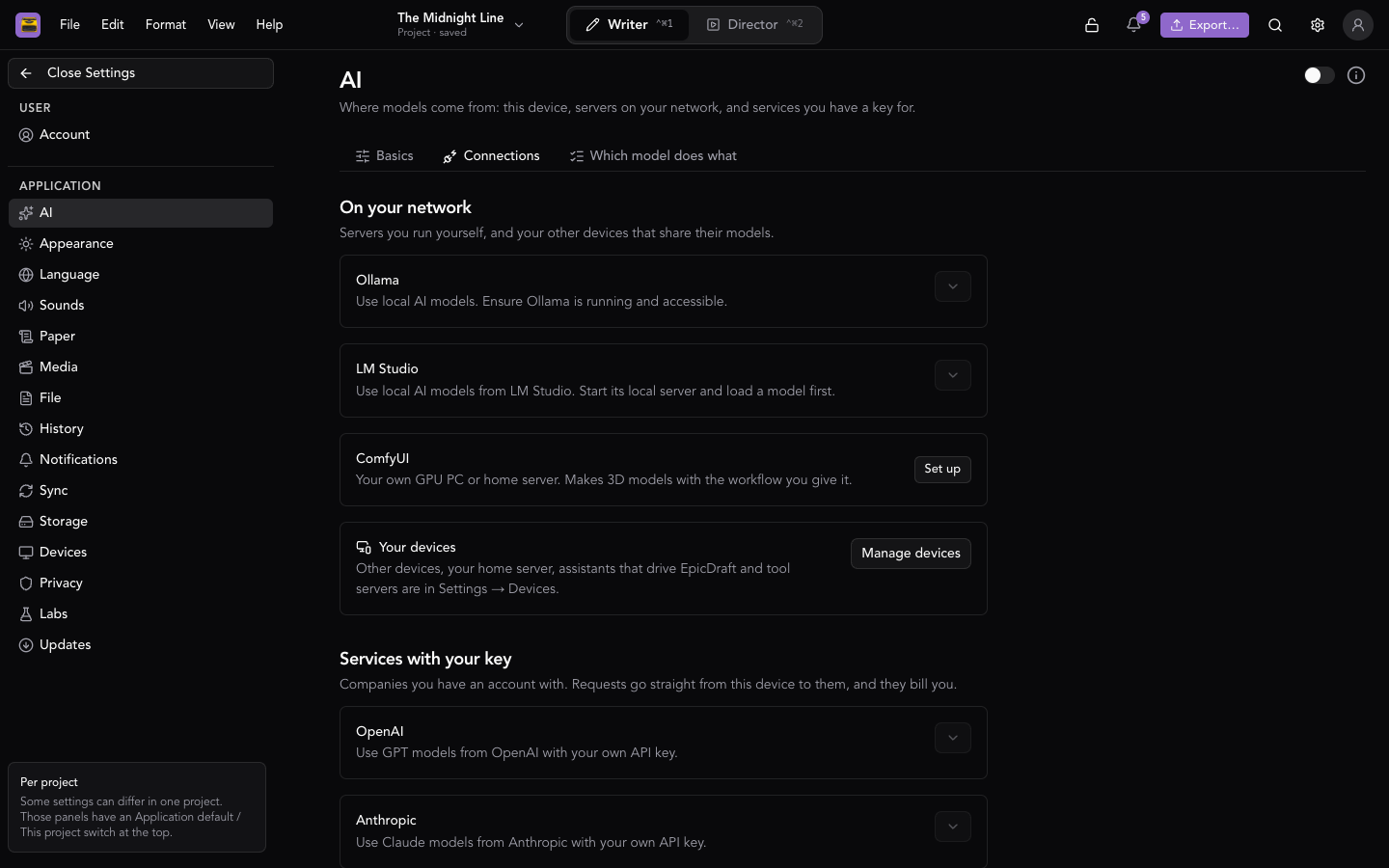
Settings → AI → Connections is where models come from. Each source is set up once, whatever it is used for; which model does each task is chosen on the Which model does what tab (see AI Setup).
The tab has four groups:
- On this device — models you download once. They work offline, and nothing you write leaves the device.
- On your network — servers you run yourself, and your other devices that share their models.
- Services with your key — companies you have an account with. Requests go straight from this device to them, and they bill you.
- Special models — models for one job each.
On this device
Models on this device is one list of every model this device can download, grouped by what it does. Each row shows its size and licence, and text models say whether they fit this device's memory: Fits comfortably, Tight — may run slowly or Larger than this device's memory. Recommended marks a good first pick. Press Download on a row, then Enable it if it isn't switched on by itself. Delete model frees the space again. Models load one at a time, the first time they're used.
The web app has no on-device models; they need the desktop or mobile app. What each app can run:
| Group | Where it runs |
|---|---|
| Text | Every native app: Mac, Windows, Linux, iPhone, iPad and Android. |
| Dictation | Desktop apps. Phones and tablets use their own speech recognition instead. |
| Voices | Desktop apps. The Mac app has more voices. |
| Scanned pages | Every native app. |
| Images | The Mac app, and iPhone and iPad (smaller models). |
| LoRAs | The Mac app. |
| 3D models | The Mac app. |
| Video | The Mac app, with the sequencer on (Settings → Labs → Sequencer). |
| Sound effects & music | The Mac app, with the sequencer on. |
Dictation, scanned pages and voices are free on every plan. The rest need AI (Pro or the trial).
Most text models are Apache-2.0 or MIT. A few come under their makers' own licences, and their rows say what those limit. LFM 2.5, for example, is free only for individuals and companies under $10M a year in revenue.
Finding a model
Only the preferred models of each group are shown at first. Show all lists the rest. To look for one, type in Search models, and choose a group in Any kind to narrow it.
To look further, press Search Hugging Face for "…" under the box. The results under On Hugging Face show downloads, size and Gated for models that need you to accept a licence first. Press Add… to add one. When a model can't run here, the row says Can't be added on this device and why: the kind of model only runs in the Mac or desktop app, video models need the sequencer, or its tags don't say what it is (choose a kind next to the search box and search again).
Adding a model makes it your own: check its licence, and that its files are a kind this device runs.
Add a model
Add a model, at the end of the list, takes any model this device can run.
- Choose the Kind of model.
- From a link: paste a Hugging Face repo, folder or link (
owner/name, a folder in one, or an https link), or direct https links one per line, and press Check. For a gated model, accept its licence on huggingface.co and fill in Hugging Face token (only for gated models). The token stays on this device and is only sent to huggingface.co. - Or Import from this device: Choose a file… or Choose a folder…. Use the files where they are (don't copy them) saves space for a large model on a shared folder; it stops working if that folder is moved or disconnected.
- Give it a Name, check the settings, and press Add model (or Import model).
Each kind says what it needs, for example one .gguf file for a text model, or a checkpoint and its parts for an image model.
LoRAs
A LoRA teaches an image model one character, place or look. LoRAs run with the on-device image models, in the Mac app.
- Add one with Add a model → LoRAs. Set Trained for (a LoRA only works with the exact model it was trained for), an optional Trigger word (added to the prompt when it isn't there already) and a Strength (1 is the usual).
- Use it for a page. Character, location and prop pages have a Set LoRA button in their header. Pick a LoRA there and set its strength. When you @-mention that page in a picture's description, its LoRA is turned on.
- Pick it when you generate. The Generate wizard has a LoRAs row for the model you're using. See Generating Media.
- Train your own. See Generating Media.
On your network
Ollama and LM Studio
If you already run Ollama or LM Studio, EpicDraft can use their models. Open the Ollama or LM Studio card, check the address (http://localhost:11434/api and http://localhost:1234/v1 by default), and switch on the models you want. For LM Studio, start its local server under its Developer tab and load a model first.
When EpicDraft runs in a web browser, both need one more setting. See Ollama and LM Studio on the web below.
ComfyUI
A ComfyUI server on your own GPU computer or home server can make 3D models and pictures, and, with the sequencer on, video takes, restyled footage, sound effects and music. Press Set up, enter its address once, then paste a ComfyUI workflow for each job you want it to do. Save each workflow in ComfyUI with Save (API Format), and write {{prompt}} where the description goes (each field says what else it takes). To use it for pictures, pick ComfyUI for Storyboards & concept art under Which model does what.
Requests go straight from this device to your server.
Your other devices
A device with on-device models can share them with your other devices. This lives in Settings → Devices → Your devices (the Your devices card here links there with Manage devices):
- Share this device's AI — your other devices can run this device's on-device models. Both must be open at the same time.
- Share image generation — they can also make pictures with this device's image models. A picture can keep this device busy for minutes.
- Share with collaborators — people you share scripts with can run this device's on-device models from the chat, while you both have the script open.
A shared model shows up on the other device as Another of your devices. Traffic goes directly between devices, never through a server.
Services with your key
Bring your own API key. Each card links to the page where the provider issues keys, and lists the models your key can use.
Text: OpenAI, Anthropic, Gemini, xAI Grok, Kimi (Moonshot AI), OpenRouter, DeepInfra, Together AI, Tencent TokenHub, and OpenAI-Compatible for any other service that speaks the OpenAI API (it takes a Base URL too). The named services list a few models each; for any other model they carry, use OpenAI-Compatible with the service's address.
Pictures, 3D, voices and more:
| Service | Used for |
|---|---|
| Meshy | 3D models |
| fal.ai | Pictures and 3D models; with the sequencer, also video takes, sound and music |
| Tripo | 3D models, rigged and animated characters |
| ElevenLabs | Voices; with the sequencer, also sound effects and music |
| Cartesia | Voices |
| Fish Audio | Voices |
| Runway | Video takes (sequencer only) |
| Viggle | Video takes (sequencer only) |
OpenAI, Gemini and xAI keys can also make pictures and read aloud, and fal.ai can read aloud too. A voice or a picture service is only used when you pick it under Which model does what (see AI Setup).
Your keys are stored on this device. Requests go straight from this device to the provider. EpicDraft never relays them and never sees your key.
Special models
Python on this computer
Desktop apps (not the Mac App Store version). Some models only run in Python with PyTorch. The Python on this computer card finds the Pythons installed here and says what each one can use: CUDA or ROCm for a GPU, Apple GPU (MPS), or CPU only. You install Python and PyTorch yourself; nothing is added to the app.
- Add a Python folder… adds an environment the card didn't find: a venv, a conda env, or a project folder with a
.venv. - Look again scans again after you install something.
Kev decision model
Kev doesn't write. It answers questions about your writing (yes or no, pick one, or a place on a scale) with calibrated probabilities, so 0.8 means right about 80% of the time. Native apps only.
Open Kev decision model under Special models:
- Download gets Kev 0.8B (812 MB), which runs on this device.
- If Python on this computer has what it needs, Kev runs there instead, as Kev 4B. The first question downloads it (9.3 GB) into your Hugging Face cache.
- Try it asks a sample question and shows the answer, where it ran and how long it took.
- Remove the download deletes Kev 0.8B.
Once Kev is ready, the chat assistant can ask it questions, such as whether a beat lands or how tense a scene is, when a number helps more than an opinion.
Ollama and LM Studio on the web
The desktop and mobile apps need nothing more. In a web browser, Ollama and LM Studio refuse requests from a web page until you allow it, and EpicDraft shows "Ollama is running but refused this page." (or the same for LM Studio).
LM Studio: turn on Enable CORS in LM Studio's Developer tab, then reload EpicDraft.
Ollama: Ollama answers browser requests only from the origins in its OLLAMA_ORIGINS environment variable. Set it to the address in your browser's address bar (for the hosted app, https://app.epicdraft.com), restart Ollama, and reload EpicDraft.
On macOS:
launchctl setenv OLLAMA_ORIGINS "https://app.epicdraft.com"On Windows, add a user environment variable called OLLAMA_ORIGINS with that value, or from a terminal:
setx OLLAMA_ORIGINS "https://app.epicdraft.com"On Linux, or any time you start the server yourself:
OLLAMA_ORIGINS="https://app.epicdraft.com" ollama serveSeparate several origins with commas. * lets every website reach your Ollama server, so list the origins you actually use.
If the card still shows no models, it tells you which problem it is: Ollama refused the page, or the server couldn't be reached at all.
Related
- AI Setup — the Default AI card and which model does what.
- Generating Media — making pictures, 3D models and more with these models.
- Table Reads & Voices — choosing voices.