Director View
Every project has two views. The Writer view holds the script and the story pages. The Director view holds the pictures and sound: storyboards, 3D sets and blocking, media and 3D assets, and the scenes played in order.
The two views come from the Writer and Director views switch in Settings → Labs, which is on unless you turn it off. With it off, the project has one Library instead. See The Workspace.
Switching views
- The header. The switch in the middle of the header reads Writer | Director. Click one to change view.
- The View menu lists Writer and Director, then Plan and Create.
- Keyboard:
| Command | Mac | Windows and Linux app | Windows and Linux browser |
|---|---|---|---|
| Writer | ⌃⌘1 | Alt+1 | Ctrl+Shift+1 |
| Director | ⌃⌘2 | Alt+2 | Ctrl+Shift+2 |
| Producer | ⌃⌘3 | Alt+3 | Ctrl+Shift+3 |
| Plan | ⌃⌘4 | Alt+4 | Ctrl+Shift+4 |
| Create | ⌃⌘5 | Alt+5 | Ctrl+Shift+5 |
- On a phone, the same switch and Plan | Create are at the top of the drawer.
Producer only shows when the Production view is on in Settings → Labs. If your role in a shared project can't read anything in a view, that view isn't offered.
The scene you are on comes with you. Switch from the script to the Director and the Director opens on that scene, with a note such as "Scene 3 · Kitchen, from the script". Each view remembers where you left it, per project, on this device.
Plan and Create
Each view has two stages. The Plan | Create control sits at the top of the Library, and the View menu has them too.
- Director · Plan is where you prepare: storyboards, 3D sets, media and 3D assets. The Director opens on Plan.
- Director · Create is where you make the film: media and 3D assets, and, with the sequencer on, the Sequence.
The Director's layout
On a desktop or tablet the Director view has four regions:
- Browser, on the left: what the project holds.
- Viewer, in the middle: the one thing you are looking at.
- Scenes, along the bottom: the script's scenes in order, with a play bar.
- Assistant, on the right, when AI is set up. See AI Chat.
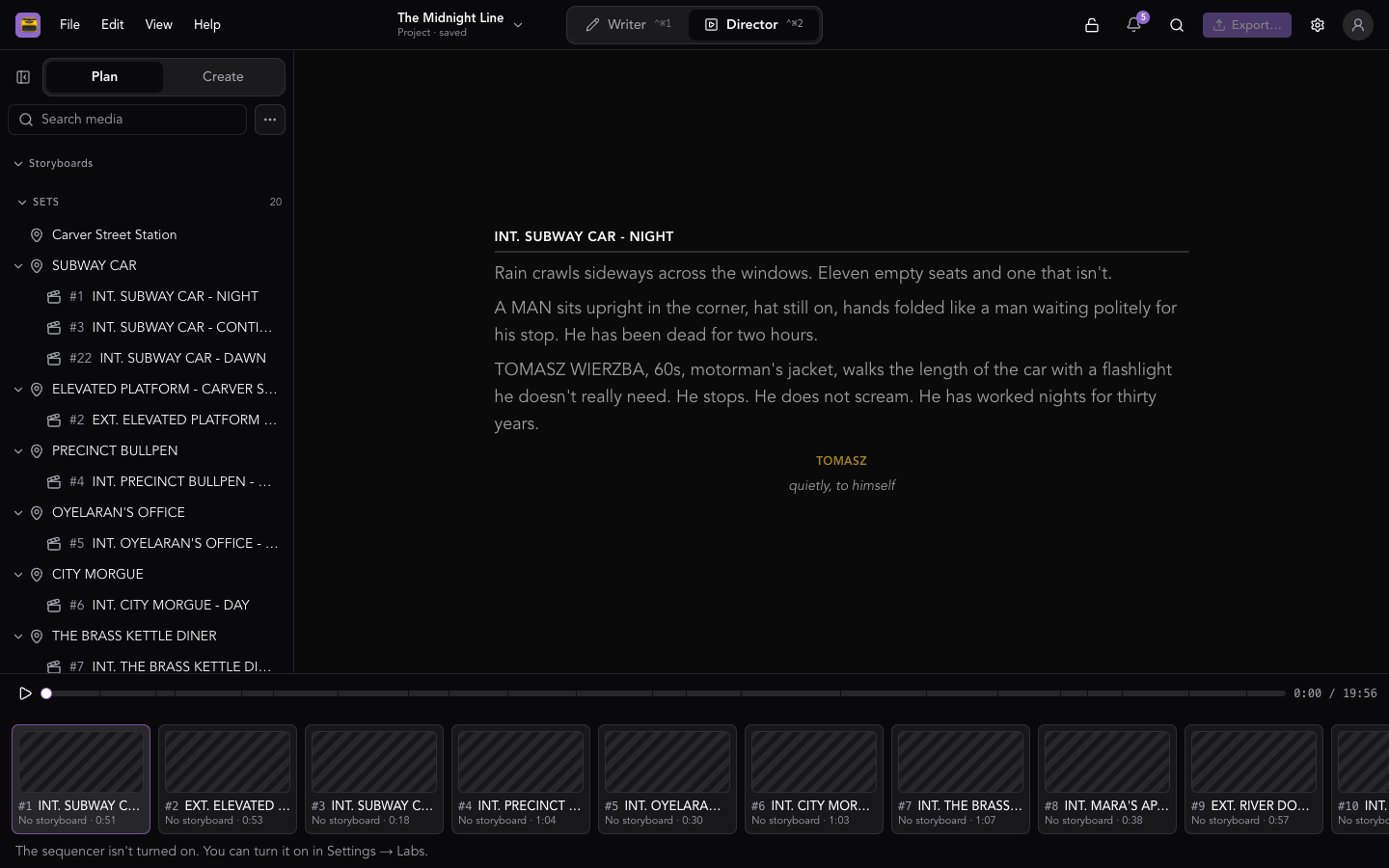
Drag the edges between regions to resize them. The header keeps Search, Export… and Settings at the right. Export… is covered in Exporting Pictures & Sound.
The Browser
The Browser is the Director's Library. On Plan it lists:
- Storyboards: every storyboard, with its shots. See Storyboards.
- Sets: one row per location, opening that location's 3D set (or Build a 3D set when it has none). The scenes set there are nested under it. Click a scene to see its 3D. A scene with no 3D yet offers Block in 3D, and starts from its location's set. See 3D Blocking.
- Scenes: any scene whose heading names no place in Sets.
- Media and 3D assets: every picture, video and sound, and every model, animation, sky, look, splat and texture in the project. See Media & 3D Assets.
Sets and Scenes show the first eight rows and a Show N more button. Create lists Media and 3D assets.
Type in the search field (Search media and boards) to filter everything in the Browser, including media tags. The + (New) at the top makes a storyboard on Plan.
Picking a row shows it in the Viewer. It doesn't leave the Director.
The Viewer
What the Viewer shows depends on what you picked:
- A scene (from the Scenes strip, or Show the scene): its storyboard panels in time, or its 3D. When a scene has both, a Storyboard | 3D switch sits under the picture. Previous panel and Next panel step through the board ("Panel 2 of 6").
- A storyboard or shot: its page, to edit in place.
- A picture, video or sound: the file, with its own controls. A picture has Compare, to look at it beside another picture.
- A scene's 3D, or a set: the 3D editor, inside the Viewer.
Items in the Viewer have Full screen (press Esc to come back) and an Open in… menu:
- Full-size window: a picture or video, large, over the app.
- New tab: media that is a link, where it lives.
- Scene page: the scene's page in the Writer view.
- Script: the script, at that scene's heading.
Show the scene brings the scene back after you've looked at something else.
The Scenes strip
The strip has a play bar (play, pause, scrub, and the clock) over one card per scene. Each card shows the scene's number and heading, what it has (N panels, 3D blocking, or No storyboard), and how long it runs, with where that length comes from: Estimated from the script, Timed in the script, From recorded dialogue, From the 3D blocking or Locked.
Click a card to show that scene. Press Space to play or pause (unless you are typing in a field or a button has focus).
Playing runs the storyboard animatic: each frame for its time, with its camera move and transition, the script's lines as captions, and any recorded sound.
Under the strip, a line says the sequencer isn't turned on. The timeline, sound and video tools need it: see Timeline & Sequencer.
A project with no scenes, boards or media shows a notice instead of empty regions.
From a scene page
A scene's page in the Writer view ends with a line such as In the Director view: 4 shots · 3D blocking. Click it to open the Director on that scene.
On a phone
- The app bar shows the stage and where you are, such as "Plan · Scene 3 of 22".
- The Viewer is at the top, then the play bar and a list of the scenes.
- The Browser is a sheet. Pull up the handle marked Library, pick something, and the sheet closes.
- A scene's 3D shows as a still through its main camera, with Edit full screen to change it.