Reports & Issues
EpicDraft checks your script as you write. What it finds shows in the right column's Issues tab, and a fuller report sits on the Reports page.
The Reports page
Open Reports from the Library in Writer · Create. It's the last row, under Documents, with the script's issue count. Reports opens as a page in the middle of the window, with its own page tab. Its heading shows the script's name, its scene count and its running time, and Go to script takes you back.
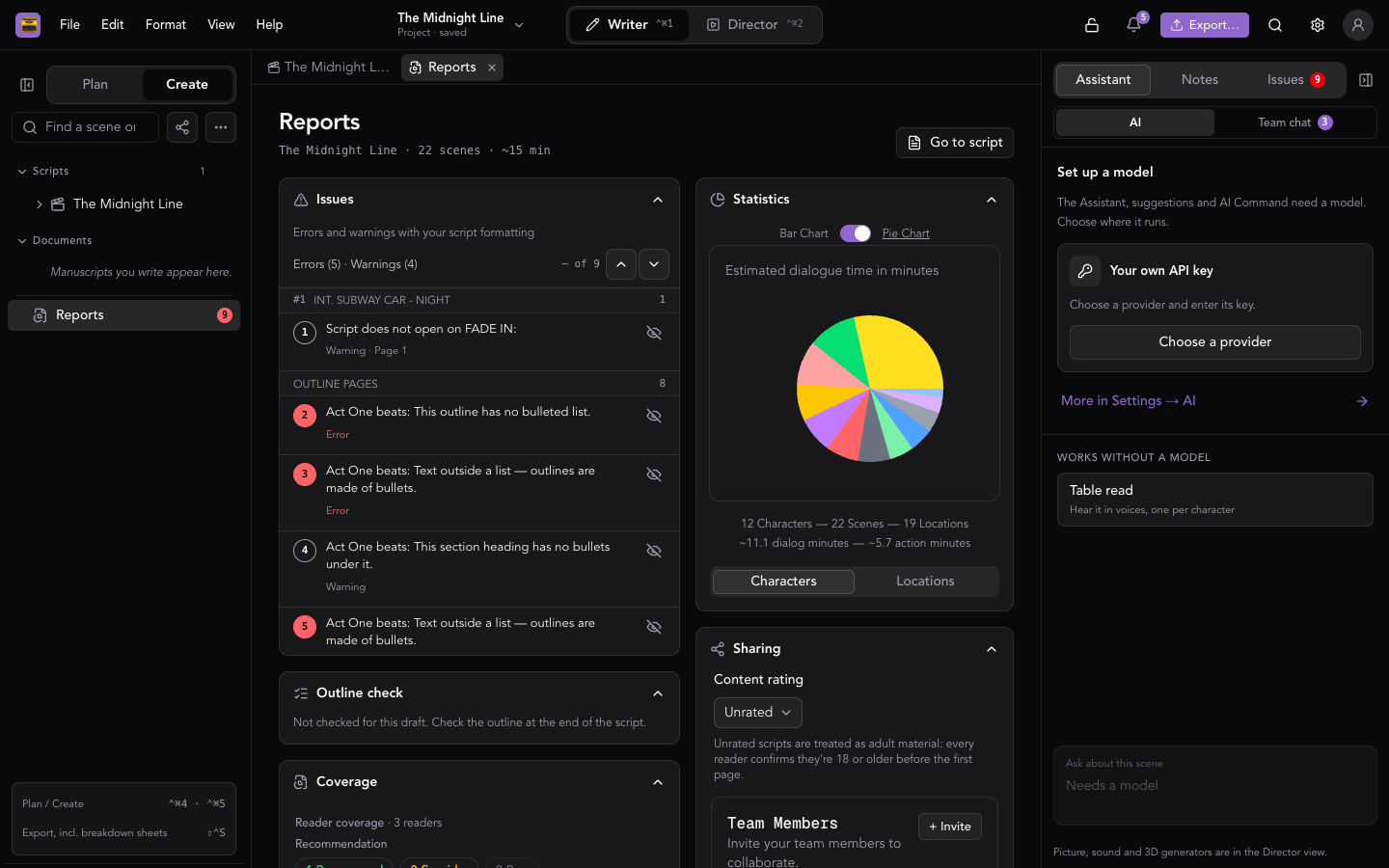
The page has these sections:
- Issues — the same list as the Issues tab. See Issues.
- Outline check — when the project has an outline: whether every outline beat is in the script, and which are still missing.
- Coverage — reader feedback and AI coverage. See Reading & Coverage.
- Statistics — see Statistics.
- Sharing — who is in the project. See Sharing and Collaboration.
At the bottom of the page, the AI commands menu has Generate AI Coverage (or Regenerate AI Coverage), Check the outline, and Ask the Assistant. They need a model, and AI is part of Pro. While one runs, the menu offers to stop it.
On a phone, Reports and Issues are separate rows in the drawer's Document group.
Issues
The Issues tab in the right column lists every error and warning, grouped by scene. Each one is numbered, and the same number marks the line on the page. A row says whether it's an Error or a Warning, and on which page.
- Click a row to go to that line. Click a marker on the page to find its row.
- The N of M count at the top, with Previous issue and Next issue, steps through the list.
- Silence this rule for this script on a row stops that check for this script. A message offers Undo.
- Silenced rules are listed under the issues, as Silenced rules (N), each with Restore.
An empty list reads No issues found.
When the right column isn't docked, the issue count shows in the status bar. A title-page issue, like a missing author, opens the Title page with the caret in that field.
On a phone, open Issues from the drawer. Tapping an issue takes you to the line, and a small bar, Issue 2 of 6, steps through the rest without leaving the script: Previous, Next, Silence and Close.
What the checks look for
Page layout: a page that runs over, a scene heading or character name left at the bottom of a page, a transition at the top of one, and action longer than four lines.
Screenplay format, including:
- A character cue with no dialogue, a parenthetical with no line after it, and parentheticals that read like sentences instead of a lowercase beat.
- The same speaker twice in a row, or a speaker resuming after action without (CONT'D).
- Cue extensions that aren't standard.
- A character's first appearance in action not in capitals, or with no age or descriptor.
- Two character names, or two locations, so alike they may be a typo.
- Scene headings without a time of day, without the period after INT or EXT, or with nothing under them.
- Camera directions in action, and words for what a character thinks or feels ("remembers", "realizes") that the camera can't see.
- Numbers written as digits in dialogue.
- Too many transitions, or transitions that don't end in TO:.
- Very long speeches, parentheticals and scenes.
- A script that doesn't open on FADE IN: or close on FADE OUT. or THE END.
- A feature that runs short or long.
- A title page with no title, no writer's name or no contact details.
Each format adds its own checks. See Story Modes.
- Television checks for act breaks.
- Stageplay flags screen transitions, camera language and INT./EXT. sluglines.
- Documentary flags elements that aren't on the VIDEO or AUDIO track.
- Ads & Content checks the running time against the target, a call to action, and how soon the hook comes.
- Game checks choices, variables and include targets.
The parenthetical style, cue extension and spelled-out number checks only run on scripts written in English.
Statistics
Statistics on the Reports page shows:
- Characters and Locations charts, as a Bar Chart or Pie Chart, to see which characters or locations take up the script.
- The totals: characters, scenes and locations.
- The estimated dialogue minutes and action minutes.
Scripts included in this one count toward the totals and the running time.
The Charts and graphs button in the status bar opens the same charts in a popover, with a second tab, Graph, for the project graph. Until the script has characters and scenes, it says there's nothing to chart yet.
The status bar itself shows your page, your scene and the estimated running time. See The Workspace.