The Workspace
With a project open, the window has four parts: the header across the top, the Library on the left, the page you are working on in the middle, and the right column with the Assistant, Notes and Issues. With no project open you see the Projects home instead.
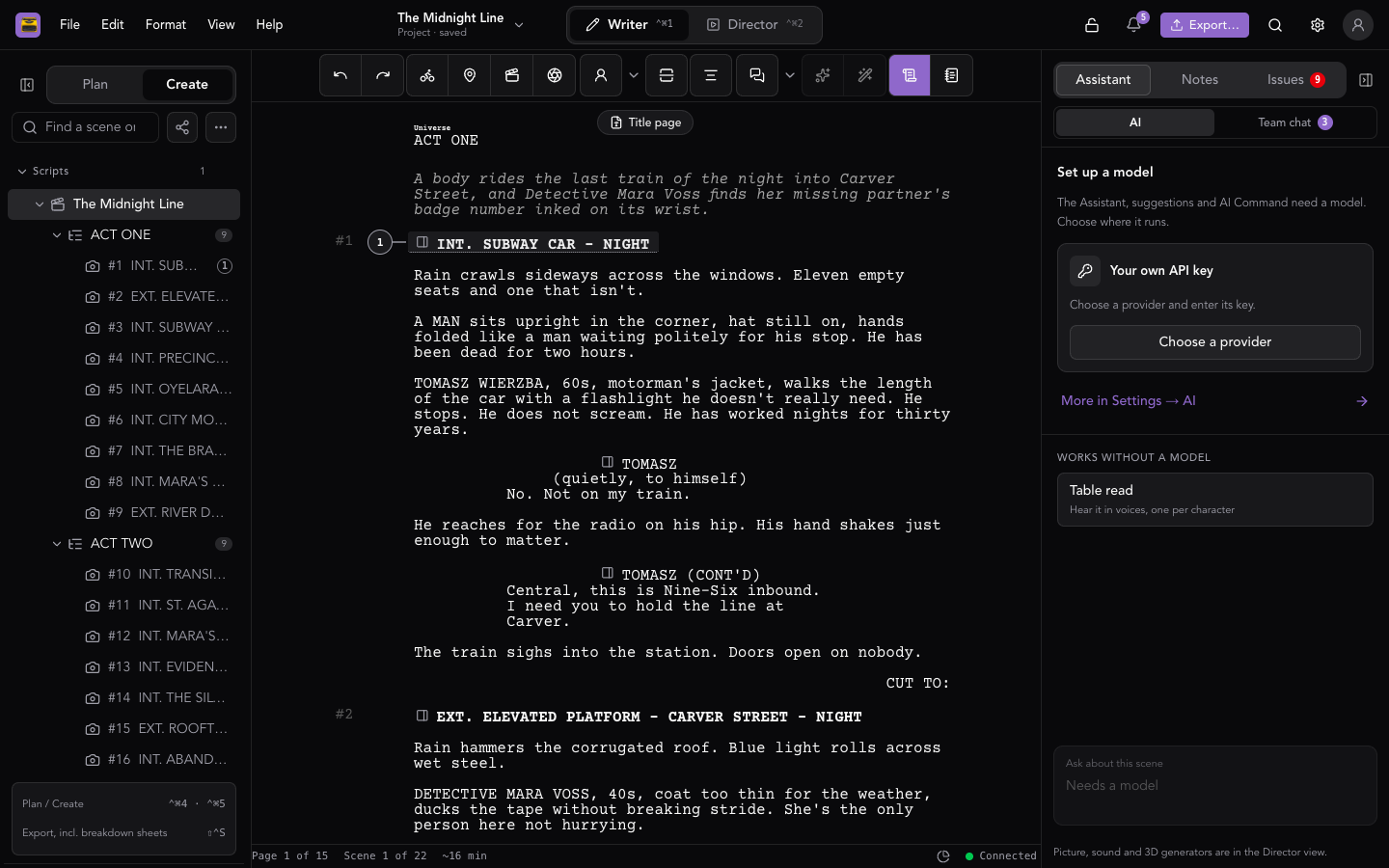
This page describes the layout with Settings → Labs → Writer and Director views on, which is how EpicDraft starts. To go back to one Library, see Classic layout at the end.
The header
Left. On the web the menus (File, Edit, Format, View, Help) sit at the left of the header. When there isn't room they fold into one Menu button. The desktop app keeps them in the system menu bar instead. The Format menu is hidden in the Director view.
Beside the menus is the project switcher: the project's name over Project · saved. Click it to switch projects, rename this one, or start a new one. See Projects.
Centre. Writer | Director switches the view. With Settings → Labs → Production view on (Pro), Producer joins them.
Right, from left to right:
- A broken-cloud button, only while the project can't reach the other people in it.
- The people in the project, as a stack of avatars. Click it to see who is here and which scene or page each person is on. It's empty while you're alone.
- The lock. An open padlock means the project isn't encrypted; a closed one means it is password protected. Click it to open the project's privacy settings. See Security.
- The bell, when you're signed in. See Notifications.
- Export… — see Import & Export.
- Search — Search everything, also ⌘K / Ctrl+K. See Find & Replace.
- Settings.
- On the web, your account button.
As the window gets narrower, Export… shrinks to its icon, and then Search and Settings leave the header. ⌘K / Ctrl+K still searches, and Settings… is still in the menus.
Writer and Director
A project has two views:
- Writer — the script and the story pages around it.
- Director — storyboards, 3D, media and the timeline. See Director View.
Each view has two stages, Plan and Create, chosen with the switch at the top of the Library. Together they decide what the Library lists:
| Plan | Create | |
|---|---|---|
| Writer | Story, Characters, Locations, Notes, reference documents | Scripts and their scenes, manuscripts, Reports |
| Director | Storyboards and media | Media, and the timeline (Labs: Sequencer) |
Opening a page takes you to the view and stage it belongs to. Your choice is remembered for each project.
Switch with the header, the View menu, or the keyboard:
| Go to | Mac | Windows and Linux app | Windows and Linux browser |
|---|---|---|---|
| Writer | ⌃⌘1 | Alt+1 | Ctrl+Shift+1 |
| Director | ⌃⌘2 | Alt+2 | Ctrl+Shift+2 |
| Producer (Labs) | ⌃⌘3 | Alt+3 | Ctrl+Shift+3 |
| Plan | ⌃⌘4 | Alt+4 | Ctrl+Shift+4 |
| Create | ⌃⌘5 | Alt+5 | Ctrl+Shift+5 |
Someone who can only read the project doesn't get the switch.
The Library
The Library runs down the left side. At its top:
- Plan | Create for the view you're in.
- A search field: Find a page, or Find a scene or page in Writer · Create. It filters the list as you type; Escape clears it.
- The Project graph button (Writer view). It opens the graph under the page.
- The ⋯ menu: Generate, then New (the kinds of page this stage holds, New folder and Import…), Collapse all folders, and Recently deleted.
At its foot, a small card lists the Plan and Create shortcuts and Export, incl. breakdown sheets (⇧⌘S / Shift+Ctrl+S).
Close Library at the top folds it away. An Open Library tab on the left edge of the page brings it back. Drag its edge to make it wider.
See Library for everything in it.
The page
The middle of the window shows whatever you have open: the script, a Library page, the Title page or the Reports page.
- Page tabs run across the top: a pinned Screenplay tab, one tab per open page, and a list of recently visited pages at the end. They're remembered for each project on this device.
- The toolbar sits above the page, and the floating toolbar follows the caret. See Formatting.
- Scroll to the very top of the main script and a Title page tab fades in above the first page. It opens the title page, where you edit the title, credit, author, draft date and contact details in place. Go to script takes you back.
- When a project has more than one main script, a slim bar above the script steps between them. See Library.
The status bar
Under the script, the status bar shows Page N of M, Scene N of M, and the estimated running time (~N min). On the right are:
- Charts and graphs — a popover with the Statistics charts and the project Graph. See Reports & Issues.
- The issue count, when the right column isn't docked.
- The AI model in use, when one is set up.
- Whether the project is connected and saved.
Hide it with View → Toggle Status Bar.
The right column
On the right, three tabs with counts: Assistant, Notes and Issues.
- Assistant has its own switch: AI for the AI chat, Team chat when the project has a team room, and Tasks for AI runs you can stop and resume. A Table read tile reads the script aloud and needs no model. AI is part of Pro. See AI Chat, Team Chat and Table Reads. View → Assistant opens it from anywhere in the project.
- Notes lists the notes in the script. See Notes.
- Issues lists formatting errors and warnings. See Reports & Issues.
The column docks beside the page when the page still fits at 100% next to it (about a 1440-pixel-wide window with the Library at its usual width). Narrower than that, it opens over the page instead. Drag its inner edge to resize it, or fold it with the button beside its tabs; a tab on the right edge brings it back.
Settings
Open Settings with the gear in the header, or Settings… in the EpicDraft menu (⌘, / Ctrl+,). Settings fills the window under the header; close it to return to your project. See Settings.
Zen Mode
F6 hides everything but the page. See View Modes & Zen.
On phones
On a phone the project screen has an app bar with a back button (to your projects), the project's name, and the drawer.
The top of the drawer has Writer | Director (and Producer when it's on) and Plan | Create. Below them:
- File actions: Export…, Print and Send a Copy….
- Document: Assistant first, Notes (Writer view), Issues, Reports, Scenes, Library, Title, History, Rename Project… and Duplicate project.
- Collaboration: Sharing.
- View: Zoom, Find, Replace, Match Case, and, where they can run, Dictate, Table read and Teleprompter.
- Display: Toolbar, Floating toolbar, Show Shot Cuts, Print Editor, Line Numbers (in the Print Editor) and Zen Mode.
There's no status bar on a phone.
Classic layout
Turn Settings → Labs → Writer and Director views off to go back to one Library. Turn it on again to come back to the layout above.
With the switch off:
- There's no header, no Projects home and no right column. The side navigation lists your projects, and the open project's file panel sits under its row. The side navigation is on the right by default and can move to the left.
- The file panel has tabs: Chat (Team Chat or Agent Chat; it appears when AI chat is set up or the project has collaborators), Library, Title, Scenes, Game (Game-format projects only) and Review, then a gear that opens the project's settings. When the panel is narrow the tab labels turn into icons.
- Library lists every page in one tree, Media included.
- Title holds the project's name, the title page fields, the log line and synopsis, and the Security options. On phones the Security options are in Settings.
- Scenes lists every scene heading, grouped by act. Click one to jump to it.
- Review is one scrolling page with Issues, Coverage, Statistics and Sharing. The badge on the tab counts outstanding issues: red if any are errors, yellow otherwise.
- The File menu has Save Project As… (a Save a Copy dialog) and Share Project… in place of Import…, Export…, Share… and Send a Copy….
- New Project opens a short New Project dialog instead of the guided flow.
- There's no Search everything.
- The status bar shows the zoom level and the project's name.