Import & Export
Import… is the one way in for scripts, documents, media and whole projects. Export… is the one way out for the script and its production documents. Both need Settings → Labs → Writer and Director views, which is on by default.
Import
Open Import… from any of these:
- File → Import…
- Import… on the Projects home or in the project switcher
- Import… in the Library's ⋯ menu
- Dropping files onto the window
Pick one file or several.
What are you bringing in?
| Choice | Files | Lands in |
|---|---|---|
| A script | Fountain, Final Draft (.fdx) or PDF | Library → Scripts |
| A document | PDF, Word (.docx), text, Markdown or HTML, kept as reference | Library → Documents |
| Media | Images, video, sound and 3D models | Media → Brought in |
| An EpicDraft project | A .sp file, or a project bundle (.zip) | A project of its own |
EpicDraft starts on the choice that fits the file.
Where should it go?
This project, An existing project (choose from your list), or A new
project. A plain text or .sp file always opens as a project of its own.
Scripts
After a script is read you choose what to bring in:
- Whole script or Chosen scenes. Chosen scenes lists the scenes found in the file, with Select all and Clear.
- Create character pages and Create location pages, for the names the file has that your Library doesn't.
- Where the scenes go: After scene N, At the end of the script, or As a new main script.
The file's title page is left out. A message offers Undo when it's done.
PDFs
A PDF has a single Import PDF dialog instead. Import as offers Screenplay, Document, or Pages as they look (comics, magazines, picture books, kept as they look to mark up). You can import only some pages, and choose how scanned pages are read. See Using PDF Files.
Several files at once
Two or more files open one list, Import N files. Each row says what the file comes in as, which project it goes to and where it lands; change any of them before you import. Files EpicDraft can't read are left out, and the list says so.
Project bundles
A project bundle opens as a project of its own. Pictures, sounds and models aren't stored in a bundle, so a message says how many need adding again.
Export
Open Export… with File → Export… (⇧⌘S / Shift+Ctrl+S), the Export… button in the header, or the card at the foot of the Library.
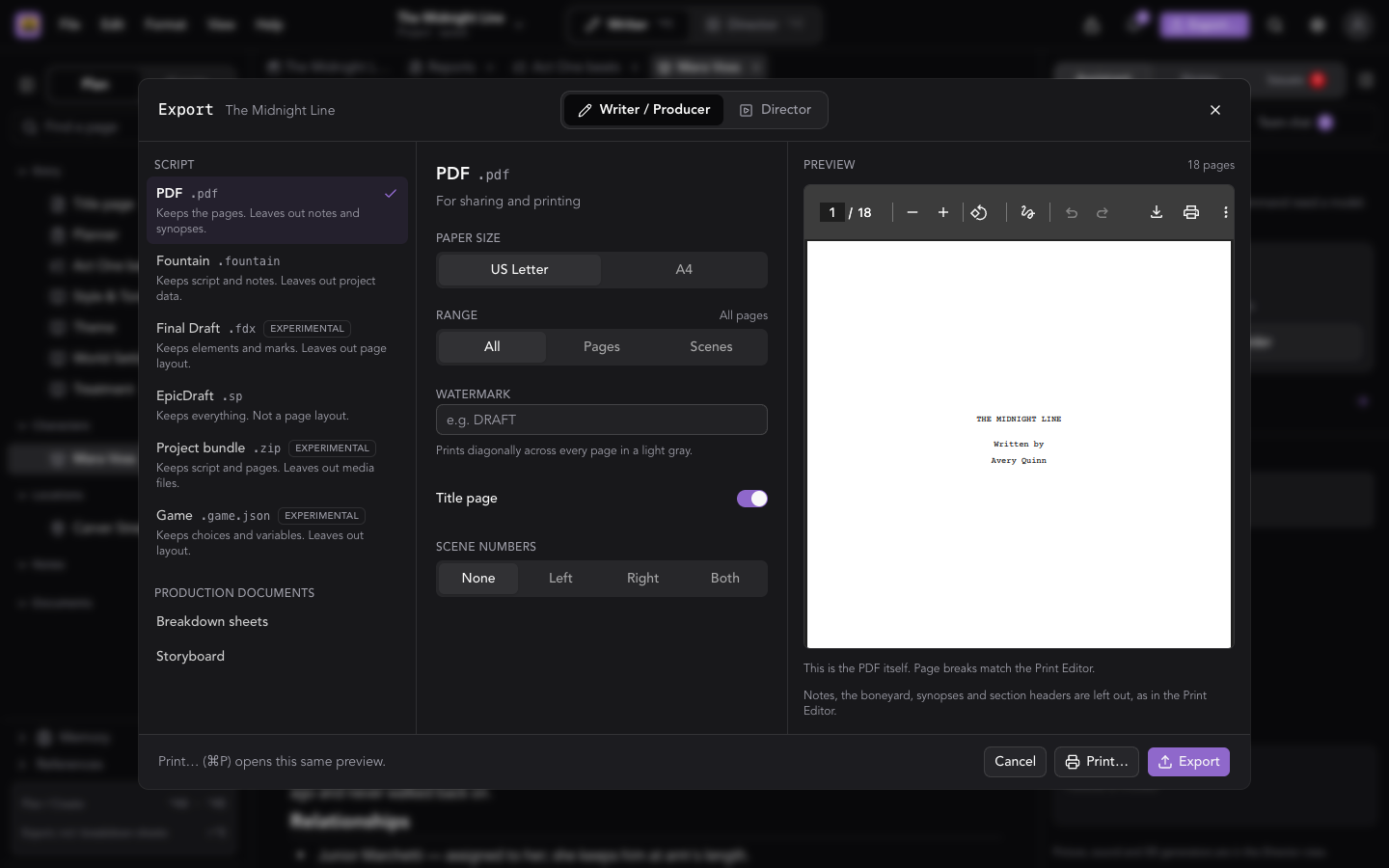
At the top, Export from switches between Writer / Producer and Director. The Director side exports pictures and sound; see Exporting Pictures & Sound. The rest of this section is the Writer / Producer side.
What to export
Script formats:
| Format | Keeps | Leaves out |
|---|---|---|
| The pages | Notes and synopses | |
| Fountain | The script and its notes | Project data |
| Final Draft (Experimental) | Elements and marks | Page layout |
| EpicDraft | Everything | Nothing, but it isn't laid out as pages |
| Project bundle (Experimental) | The script and pages | Media files |
| Game (Experimental, Pro) | Choices and variables | Layout |
Production documents:
- Breakdown sheets — one sheet for each scene, from the notes tagged in the script. Choose the Whole script, Chosen scenes or A storyboard's shots, and which departments to include. Save them as a PDF or CSV, or Print… them.
- Storyboard — open a storyboard first. It opens in the Print preview, where you can save it as a PDF.
The Game file is part of Pro. Fountain, Final Draft, PDF and EpicDraft files stay free.
PDF options
- Paper size — US Letter or A4.
- Range — All, Pages or Scenes, with a list like
1-3, 5. - Watermark — text printed diagonally across every page in light gray.
- Title page — on or off.
- Scene numbers — Left, Right, Both or None.
The Preview beside them is the PDF itself, and its page breaks match the Print Editor. These options are shared with File → Print…, which opens the same preview. They last until you reload, and another project starts from the defaults.
Several main scripts
When a project has more than one main script, PDF, Fountain and Final Draft ask what to include: This script or All main scripts, which puts every main script in order, each starting on a new page.
Where the file goes
The desktop app asks where to save. The web downloads the file. A phone opens the share sheet so you can choose where to send it.
Someone reading a project can't export it. They get Save a copy instead, which keeps an editable copy in My projects.
The File menu
| Item | Does |
|---|---|
| New Project | The guided New project flow. ⌘N / Ctrl+N |
| Open Project | Opens an EpicDraft file from your device. ⌘O / Ctrl+O |
| Import… | See Import. |
| Save Project | Desktop app only. Writes the project to a file on this device. ⌘S / Ctrl+S |
| Export… | See Export. ⇧⌘S / Shift+Ctrl+S |
| Duplicate Project | See Projects. ⇧⌘N / Shift+Ctrl+N |
| Rename Project… | Renames the open project. |
| History… | Earlier versions. See File History. |
| Share… | Invite people. See Sharing. |
| Send a Copy… | Hands the project, as an EpicDraft file, to the share sheet, or downloads it where there is none. |
| Print… | See Printing. ⌘P / Ctrl+P |
In a browser some of these keys change; see Keyboard Shortcuts.